Ultimate Guide: Boost Your FPS in Black Ops 3 Zombies
Step 1: Locate Your Config File
- Right-click on your Black Ops 3 Zombies game in your Steam library and select "Browse Files."
- Navigate to the following path: C:\SteamLibrary\steamapps\common\Call of Duty Black Ops III\players\config.ini. (Your path might differ from mine)
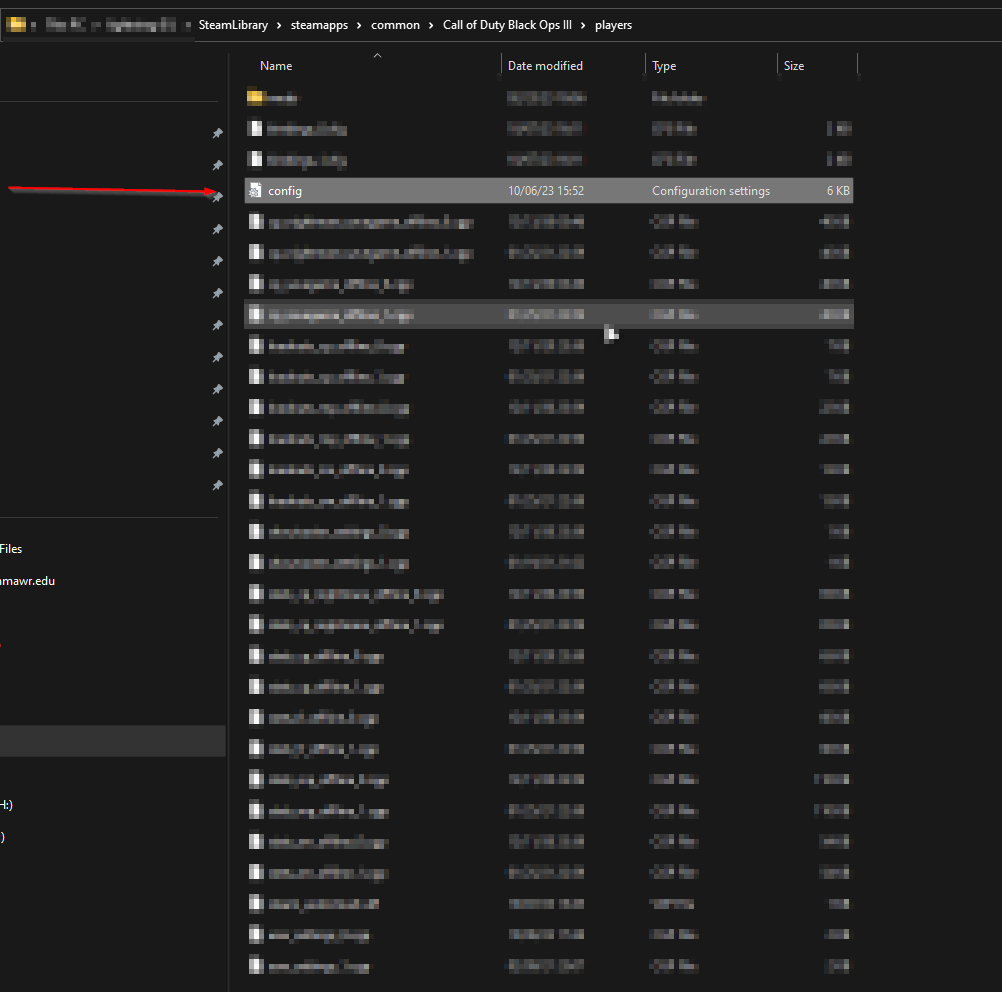
Step 2: Edit the Config File
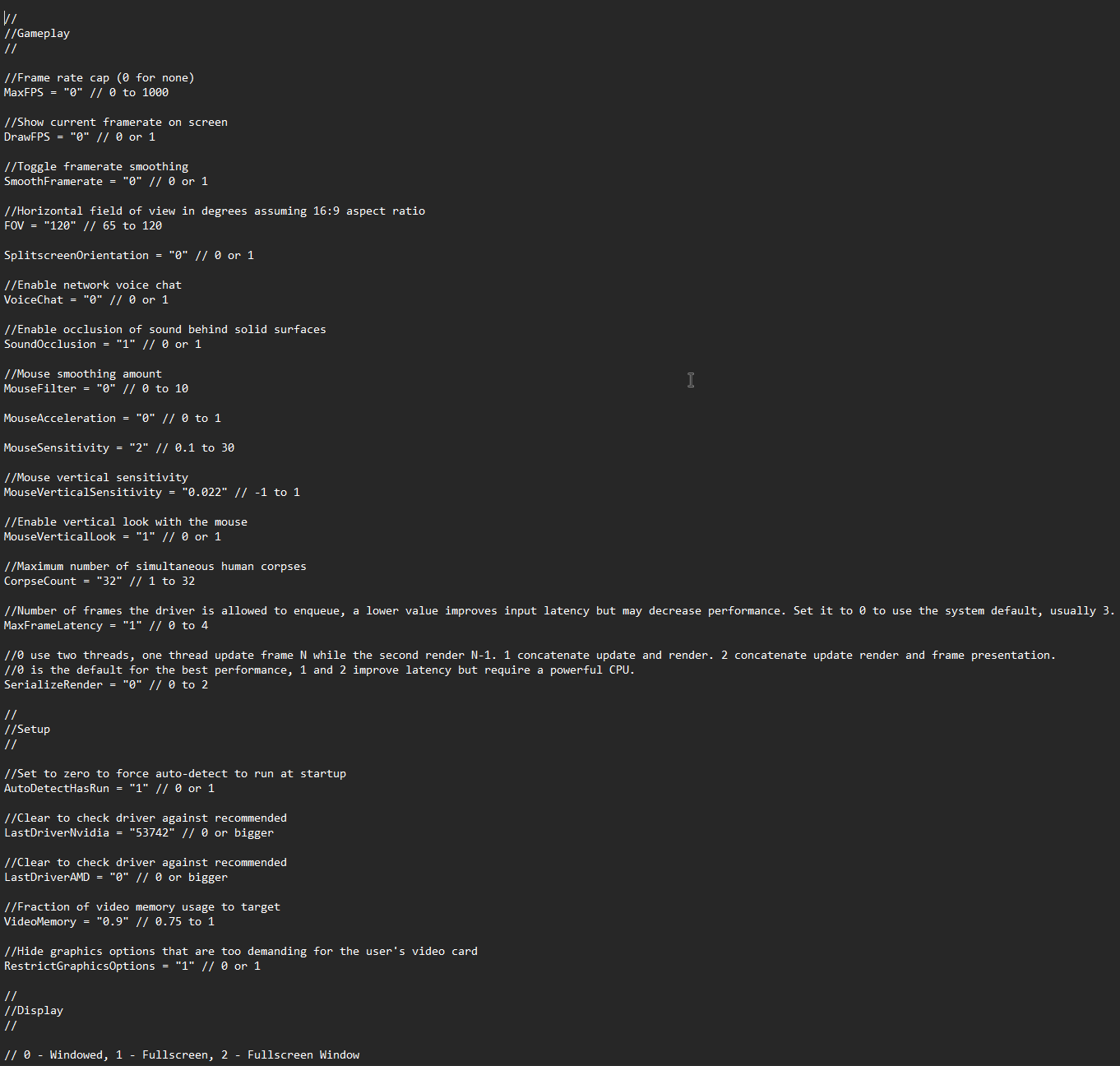
Open the config.ini file in a text editor. You'll find various settings that can impact your FPS and overall game performance. Let's focus on the key settings to optimize:
- Gameplay Settings:
- MaxFPS: Set this value to your desired frame rate cap. For example, "0" means no cap, but you can limit it to a specific number (e.g., "60") for smoother performance.
- DrawFPS: Toggle this setting to "1" if you want to display your current frame rate on-screen for monitoring.
- FOV: Adjust the field of view. A lower value (e.g., "65") may improve performance.
Setup Settings:
- VideoMemory: Set this to a value that reflects your GPU's video memory usage, but don't exceed "1.0" (e.g., "0.9").
- RestrictGraphicsOptions: If you have a lower-end system, set this to "1" to hide demanding graphics options.
Display Settings:
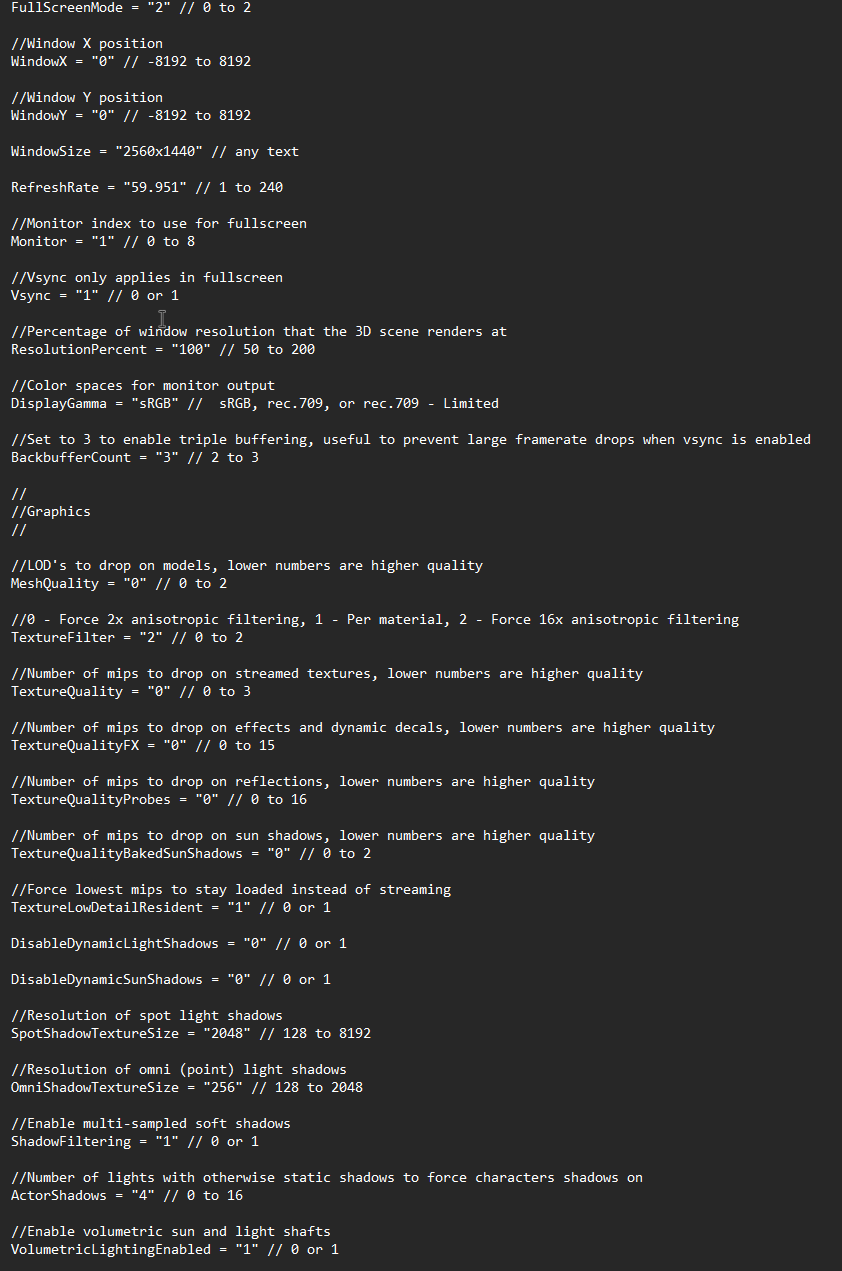
- FullScreenMode: Choose your preferred mode: "0" (Windowed), "1" (Fullscreen), or "2" (Fullscreen Window).
- Vsync: Toggle this setting to "0" to turn off Vsync if you experience screen tearing. Leave it at "1" for smoother but capped FPS.
Graphics Settings:
- MeshQuality: Lower this setting to "0" for higher-quality models.
- TextureFilter: Set this to "2" for 16x anisotropic filtering.
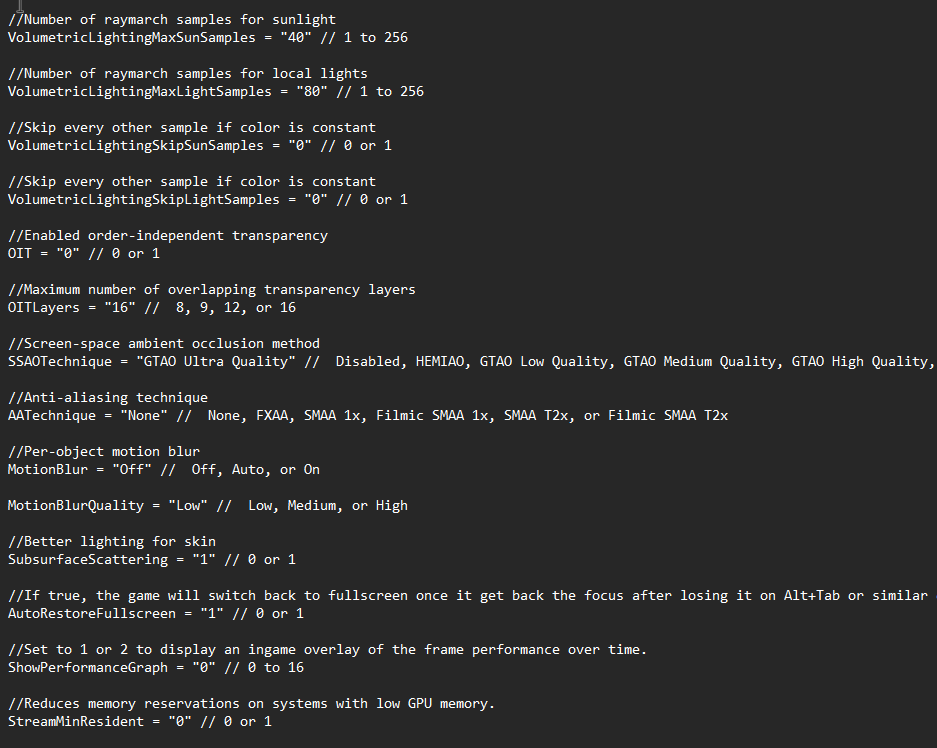
- TextureQuality: Adjust this based on your GPU; lower-end systems may benefit from lower values (e.g., "1").
Additional Settings:
- You can explore other settings in the file, but be cautious and make changes one at a time to ensure stability.
- After making adjustments to the config.ini file, save the changes and close the text editor.
- Launch Black Ops 3 Zombies and monitor your FPS. If the game runs smoothly, you're all set! If not, return to the config.ini file and fine-tune settings to find the optimal balance between performance and visual quality for your system.
- Remember, tweaking these settings may require some trial and error, so don't hesitate to experiment until you achieve the desired FPS and gaming experience.
I have attached a link to my custom file to give you an idea on what you could do with your system but keep in mind that my hardware will differ from yours. My Hardware:
- Intel(R) Core(TM) i7-8086K CPU
- Nvidia 3090 GPU
- 32 GB of RAM
Bonus: Skip the Boot-Up Video
Are you tired of waiting for the lengthy boot-up video every time you start Black Ops 3 Zombies? We've got a quick solution for you! Follow these steps to skip the boot-up video and jump right into the action:
- Navigate to your game installation folder. For example: C:\SteamLibrary\steamapps\common\Call of Duty Black Ops III\video\.
- Look for a video file named logo_sequence. This is the boot-up video that plays when you launch the game.
- To prevent the video from playing, simply rename it to anything else. For instance, you can change it to logo_sequence_backup.
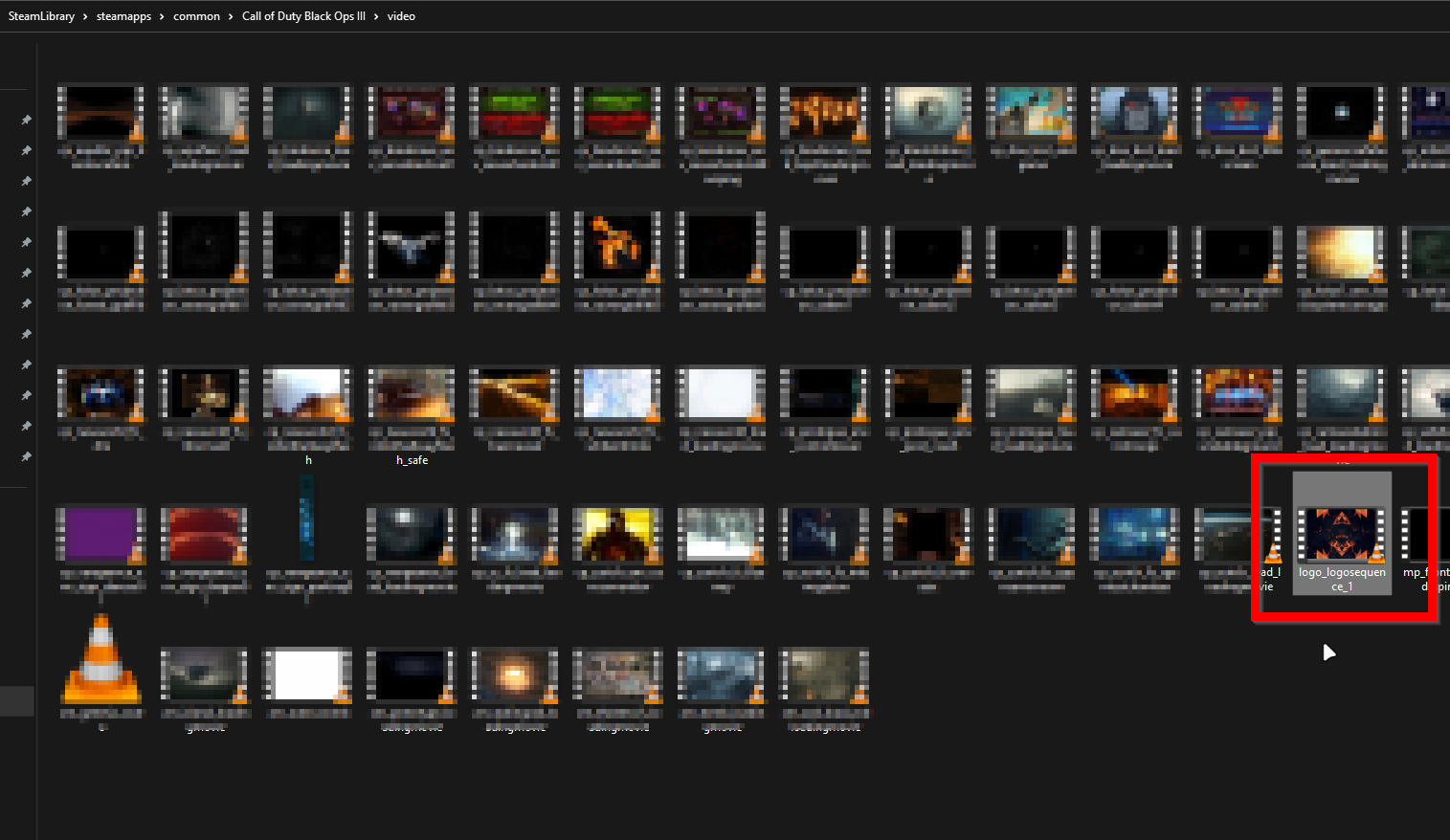
Now, when you start Black Ops 3 Zombies, you won't have to endure the boot-up video. Your game will load faster, and you can dive straight into the zombie-slaying action!
I appreciate you taking the time to read this guide on boosting your FPS in Black Ops 3 Zombies. I hope the tips and tweaks provided here have helped you enhance your gaming experience. Remember that optimizing your settings may require some trial and error, but the result is a smoother and more enjoyable gameplay session.
- All Around Enhancement Mod Description And Info★ 5 (597)211k views1.2k ♥34 minUpdated Aug 10, 2023
- Black Ops 3: Console Commands★ 5 (1.1k)123k views2.4k ♥7 minUpdated Feb 13, 2020
- Origins Ultimate Guide★ 5 (562)72k views1.7k ♥17 minUpdated Jun 24, 2017
- Guide for Shadows of Evil [2020 updated]★ 5 (1.4k)67k views4.5k ♥24 minUpdated Mar 22, 2024
- Guide for Der Eisendrache [2020 updated]★ 5 (1.3k)65k views4.6k ♥30 minUpdated Feb 22, 2024
- How to download the community T7patch by Serious and play online zombies safely (also FPS Fix)★ 5 (491)62k views1.2k ♥4 minUpdated Apr 30






- Upgrading to PremiumTeam Fortress 2★ 5 (20k)1441k views11k ♥6 minUpdated May 11, 2022
- No More Room in Hell Official ManualNo More Room in Hell★ 5 (2.8k)569k views2.1k ♥29 minUpdated Apr 22, 2019
- NMRiH Community Hosting GuidesNo More Room in Hell★ 5 (526)351k views653 ♥1 minUpdated Aug 10, 2022
- Лучшие кооперативные игры SteamPAYDAY 2★ 5 (1.5k)315k views2.1k ♥56 minRussianUpdated Apr 27, 2025
- Desert Eagle Heat Treated | Blue GemCounter-Strike 2★ 5 (1.6k)292k views1.5k ♥2 minUpdated Jan 16
- Treasure Hunt Puzzle SolutionsTotal War: WARHAMMER II★ 5 (6.9k)281k views15k ♥3 minUpdated Aug 19, 2021






This guide was created by its original author on the Steam Community. Are you the author and want it removed? Request removal.