How to install the Call of Duty Black Ops3 T7 Safety patch and have offline progression
Premise
In this guide I'm going to show you how to install T7x BOIII client.
With this client you are safer to play Black ops 3 online, you gain the ability to unlock all Black market guns without spending money/years of gambling, you can level up in multiplayer and zombies while against bots, can level up and progress (level, camo, ect.) offline/disconnected from the internet.
With this client you are safer to play Black ops 3 online, you gain the ability to unlock all Black market guns without spending money/years of gambling, you can level up in multiplayer and zombies while against bots, can level up and progress (level, camo, ect.) offline/disconnected from the internet.
Install T7x
First make sure you installed Black ops 3 on your PC.
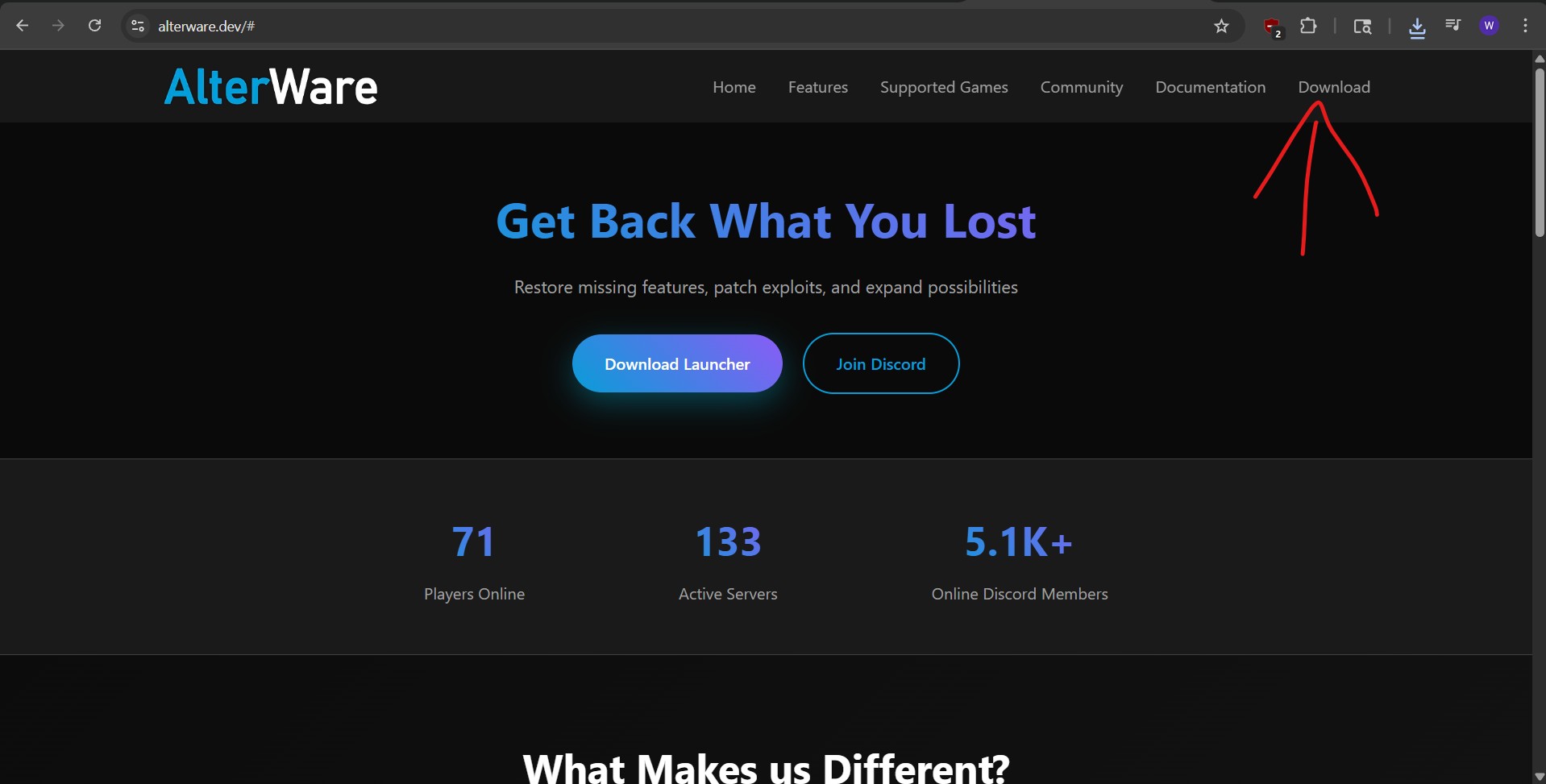
Now go to https://alterware.dev/# and click download on the top right.
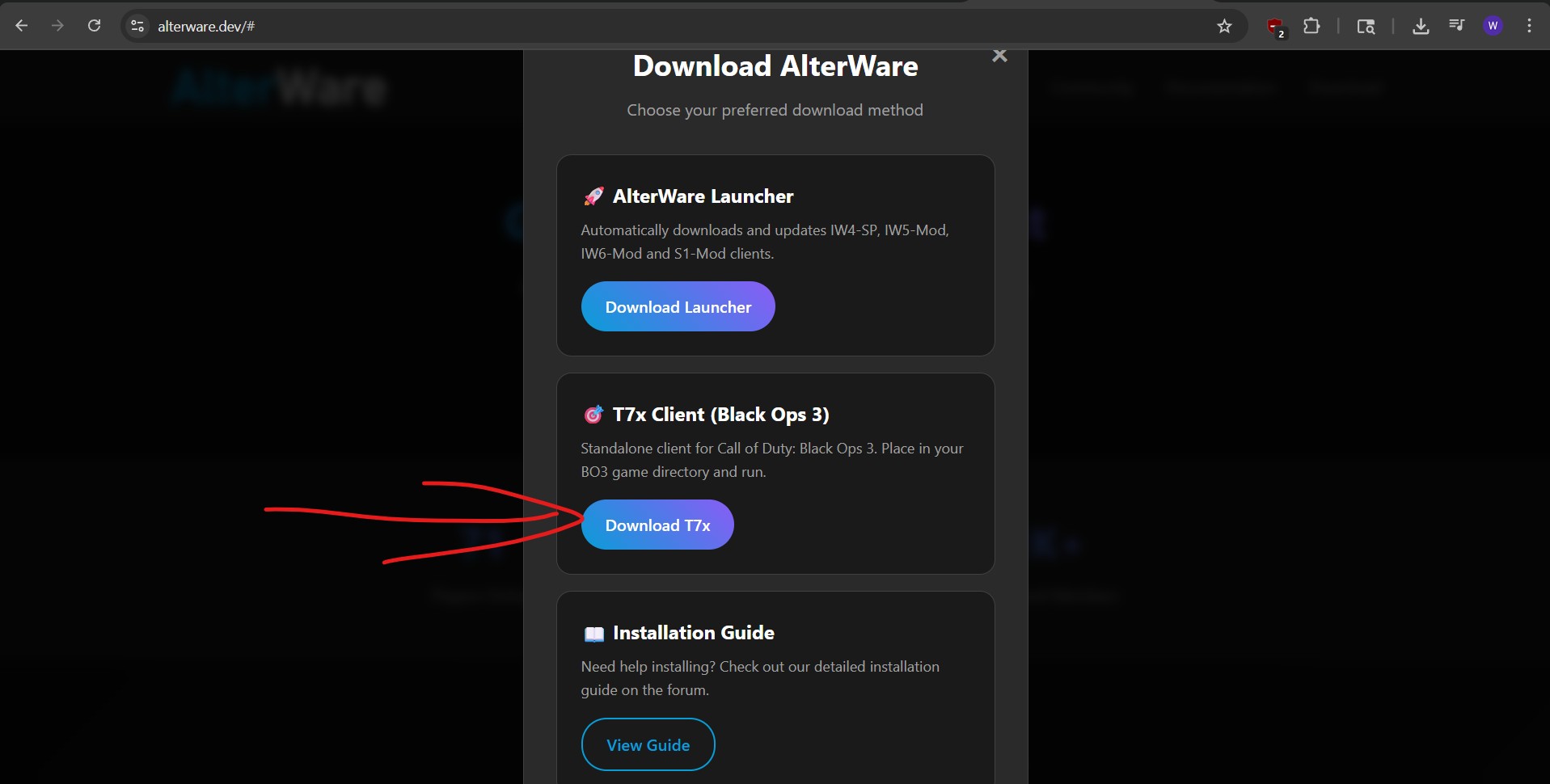
Download the T7x Client (Black Ops 3).
 Go to your Steam library.
Right click on Call of Duty Black ops 3.
Click browse files.
This will open the root folder for Call of Duty Black ops 3, simply drag the T7x Client to your root
Click the T7x to start the Client, first time might need to be ran as an administrator.
Now use T7x as your standard launch program.
When you launch it it should launch the client and from there a little console.
To know you are using the program correctly, look in game to the left top corner, there it should say T7x with the version you are using.
The Client also works fully offline and in the game you can find options to unlock everything, specific levels and loot box unlocks.
Now go to https://alterware.dev/# and click download on the top right.
Download the T7x Client (Black Ops 3).
Go to your Steam library.Right click on Call of Duty Black ops 3.
Click browse files.
This will open the root folder for Call of Duty Black ops 3, simply drag the T7x Client to your root
Click the T7x to start the Client, first time might need to be ran as an administrator.
Now use T7x as your standard launch program.
When you launch it it should launch the client and from there a little console.
To know you are using the program correctly, look in game to the left top corner, there it should say T7x with the version you are using.
The Client also works fully offline and in the game you can find options to unlock everything, specific levels and loot box unlocks.
Mods and custom zombie maps
Go to your Root folder of Black ops 3 and create 2 folders.
Name one ''Mods'' and the other ''usermaps''
Now when you want to download a map or mod, you will have to go to the workshop on steam and subscribe to the ones you are interested in.
Then when downloaded, you will have to head to the workshop folder and move the mods and maps to the folders we just made.
Your Call of Duty Black ops 3 workshop folder is located:
''{where you have installed steam}Steam\steamapps\workshop\content\311210''
When you moved the mods and maps, you can load them like you normally would and can unsubscribe them on the workshop to save space
Name one ''Mods'' and the other ''usermaps''
Now when you want to download a map or mod, you will have to go to the workshop on steam and subscribe to the ones you are interested in.
Then when downloaded, you will have to head to the workshop folder and move the mods and maps to the folders we just made.
Your Call of Duty Black ops 3 workshop folder is located:
''{where you have installed steam}Steam\steamapps\workshop\content\311210''
When you moved the mods and maps, you can load them like you normally would and can unsubscribe them on the workshop to save space
Easier way to start the game
Lets make it easier to start Black ops 3 with the t7x client.
First go to where we have the client installed.
Right click the client and create a shortcut.
Now right click the shortcut and go to properties.
Copy the location behind the target, for me that is:
"C:\Program Files (x86)\Steam\steamapps\common\Call of Duty Black Ops III\t7x.exe"
Now head back to your Steam library and click on Black ops 3.
Click on the COG on the right and click properties.
You should see an empty bar under Launch options.
Paste what you copied here and type behind it %command%
The result should look like this if you have your game installed in the standard location.
"C:\Program Files (x86)\Steam\steamapps\common\Call of Duty Black Ops III\t7x.exe" %command%
Now when we click play, it should start the T7x client instead of normal Black ops 3.
First go to where we have the client installed.
Right click the client and create a shortcut.
Now right click the shortcut and go to properties.
Copy the location behind the target, for me that is:
"C:\Program Files (x86)\Steam\steamapps\common\Call of Duty Black Ops III\t7x.exe"
Now head back to your Steam library and click on Black ops 3.
Click on the COG on the right and click properties.
You should see an empty bar under Launch options.
Paste what you copied here and type behind it %command%
The result should look like this if you have your game installed in the standard location.
"C:\Program Files (x86)\Steam\steamapps\common\Call of Duty Black Ops III\t7x.exe" %command%
Now when we click play, it should start the T7x client instead of normal Black ops 3.
Leveling with Bots
In game you can use ''Combat Training'' to play against bots and still level up and unlock challenges/camo's like you would online.
Customizing bots
Now in the match it will use random names for the bot players, the same as in private matches normally.
You can change the names by going to ''C:\Program Files (x86)\Steam\steamapps\common\Call of Duty Black Ops III\t7x'' if that is your standard install location and adding a textfile named ''Bots''
Here you can type in names you want to see in the match, each name can be a maximum of 15 letters/numbers/symbols before being cutoff, also these names wont have the trademark bot clan tag in game.
You can change the names by going to ''C:\Program Files (x86)\Steam\steamapps\common\Call of Duty Black Ops III\t7x'' if that is your standard install location and adding a textfile named ''Bots''
Here you can type in names you want to see in the match, each name can be a maximum of 15 letters/numbers/symbols before being cutoff, also these names wont have the trademark bot clan tag in game.
Video guide
And you are done
Have fun and remember you can still progress offline when disconnected from the internet, by playing combat training.
Playing custom zombie maps also levels you up like it normally would on official maps.
Playing custom zombie maps also levels you up like it normally would on official maps.
Need to downgrade?
Like and Favorite

More Call of Duty: Black Ops III guides
- All Around Enhancement Mod Description And Info★ 5 (597)211k views1.2k ♥34 minUpdated Aug 10, 2023
- Black Ops 3: Console Commands★ 5 (1.1k)123k views2.4k ♥7 minUpdated Feb 13, 2020
- Origins Ultimate Guide★ 5 (562)72k views1.7k ♥17 minUpdated Jun 24, 2017
- Guide for Shadows of Evil [2020 updated]★ 5 (1.4k)67k views4.5k ♥24 minUpdated Mar 22, 2024
- Guide for Der Eisendrache [2020 updated]★ 5 (1.3k)65k views4.6k ♥30 minUpdated Feb 22, 2024
- How to download the community T7patch by Serious and play online zombies safely (also FPS Fix)★ 5 (491)62k views1.2k ♥4 minUpdated Apr 30





🔥 Popular guides
- Upgrading to PremiumTeam Fortress 2★ 5 (20k)1441k views11k ♥6 minUpdated May 11, 2022
- No More Room in Hell Official ManualNo More Room in Hell★ 5 (2.8k)569k views2.1k ♥29 minUpdated Apr 22, 2019
- NMRiH Community Hosting GuidesNo More Room in Hell★ 5 (526)351k views653 ♥1 minUpdated Aug 10, 2022
- Лучшие кооперативные игры SteamPAYDAY 2★ 5 (1.5k)315k views2.1k ♥56 minRussianUpdated Apr 27, 2025
- Desert Eagle Heat Treated | Blue GemCounter-Strike 2★ 5 (1.6k)292k views1.5k ♥2 minUpdated Jan 16
- Treasure Hunt Puzzle SolutionsTotal War: WARHAMMER II★ 5 (6.9k)281k views15k ♥3 minUpdated Aug 19, 2021






This guide was created by its original author on the Steam Community. Are you the author and want it removed? Request removal.