"Could not find zone" Simple fix
What is the problem?
Some map makers unfortunately have their mod tools configured improperly, thus when they publish a map, it only has English localization and does not have the files for other localizations, so if your game uses a specific localization, and the file does not exist for it, it will just crash.
This is how it looks if you have Arabic localization like me:
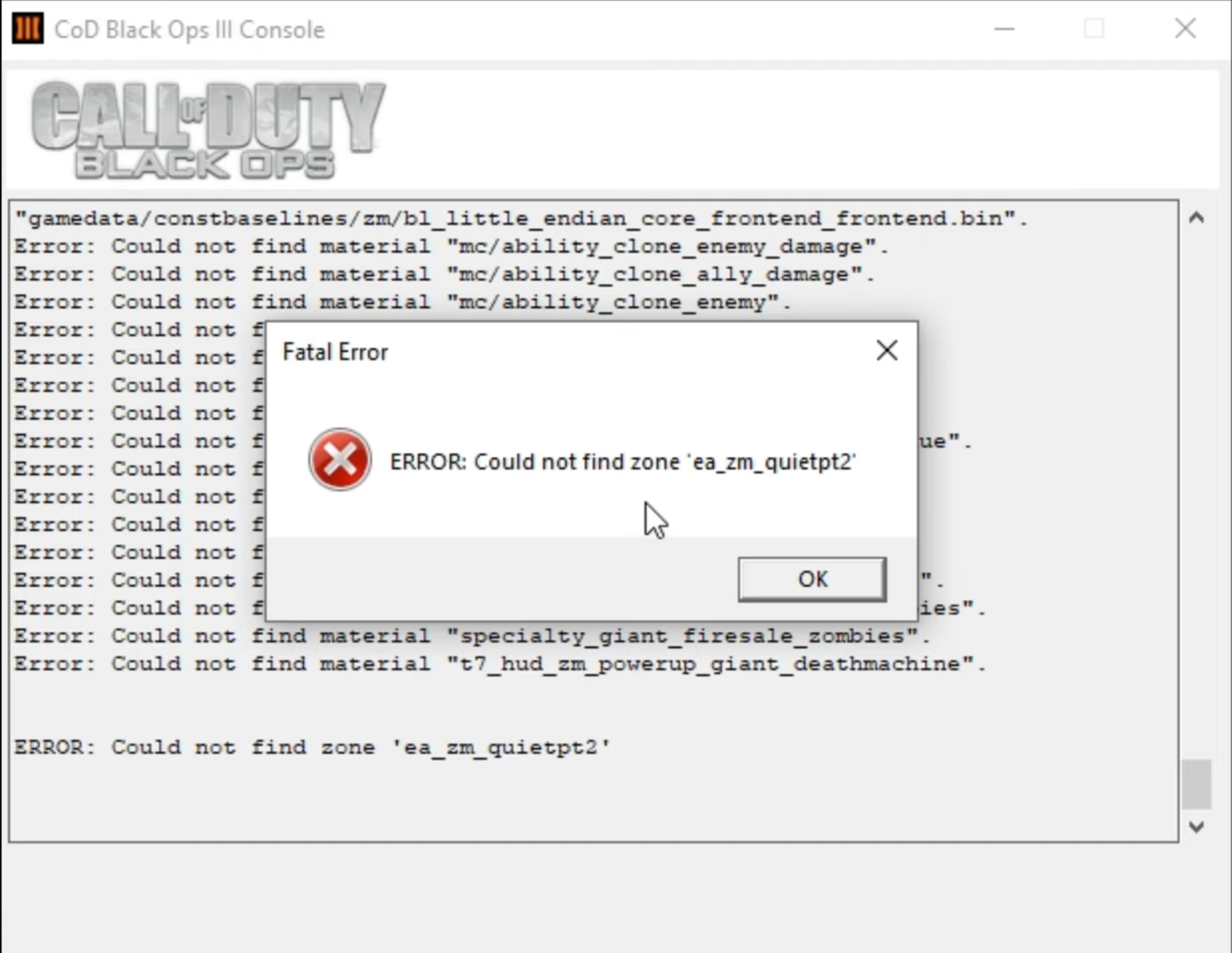
This is how it looks if you have Arabic localization like me:
So how do we fix it?
Well, I have some good news and some bad news.
It's easily fixable, but it wont apply to any future map you download.
There is a manual way to go inside the workshop files and make a copy of a specific localization then rename the copy as your localization, however, this is very inconvenient and annoying to do every single time you download a new map, or if you have a ton of maps downloaded.
So I over-engineered this solution here[github.com]
It's a python program to simply fix this issue for all the maps you currently have downloaded, with any localization. This is how it looks like:
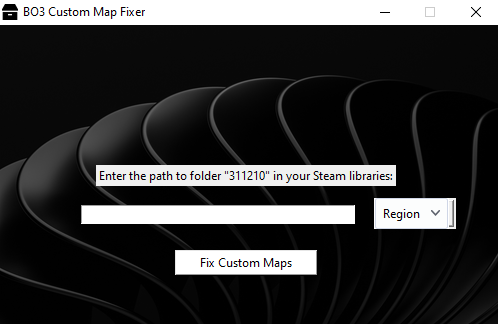
All you need to do is put in the path to your workshop folder, which should be by default:
C:\Program Files (x86)\Steam\steamapps\workshop\content\311210
or if you have it on a secondary drive:
(Drive letter):\SteamLibrary\steamapps\workshop\content\311210
Then simply pick the region, and then press "Fix Custom Maps"
It'll take a few moments but then, Voila!
All your custom maps will be fixed! :)
It's easily fixable, but it wont apply to any future map you download.
There is a manual way to go inside the workshop files and make a copy of a specific localization then rename the copy as your localization, however, this is very inconvenient and annoying to do every single time you download a new map, or if you have a ton of maps downloaded.
So I over-engineered this solution here[github.com]
It's a python program to simply fix this issue for all the maps you currently have downloaded, with any localization. This is how it looks like:
All you need to do is put in the path to your workshop folder, which should be by default:
C:\Program Files (x86)\Steam\steamapps\workshop\content\311210
or if you have it on a secondary drive:
(Drive letter):\SteamLibrary\steamapps\workshop\content\311210
Then simply pick the region, and then press "Fix Custom Maps"
It'll take a few moments but then, Voila!
All your custom maps will be fixed! :)
Conclusion
I hope this simple program I made in my spare time helps you!
Please share this guide with anyone you think might benefit from it!
If there are any issues, don't hesitate to comment and I'll do my best to help if I can!
Enjoy!
Please share this guide with anyone you think might benefit from it!
If there are any issues, don't hesitate to comment and I'll do my best to help if I can!
Enjoy!
More Call of Duty: Black Ops III guides
- All Around Enhancement Mod Description And Info★ 5 (597)211k views1.2k ♥34 minUpdated Aug 10, 2023
- Black Ops 3: Console Commands★ 5 (1.1k)123k views2.4k ♥7 minUpdated Feb 13, 2020
- Origins Ultimate Guide★ 5 (562)72k views1.7k ♥17 minUpdated Jun 24, 2017
- Guide for Shadows of Evil [2020 updated]★ 5 (1.4k)67k views4.5k ♥24 minUpdated Mar 22, 2024
- Guide for Der Eisendrache [2020 updated]★ 5 (1.3k)65k views4.6k ♥30 minUpdated Feb 22, 2024
- How to download the community T7patch by Serious and play online zombies safely (also FPS Fix)★ 5 (491)62k views1.2k ♥4 minUpdated Apr 30




🔥 Popular guides
- Upgrading to PremiumTeam Fortress 2★ 5 (20k)1441k views11k ♥6 minUpdated May 11, 2022
- No More Room in Hell Official ManualNo More Room in Hell★ 5 (2.8k)569k views2.1k ♥29 minUpdated Apr 22, 2019
- NMRiH Community Hosting GuidesNo More Room in Hell★ 5 (526)351k views653 ♥1 minUpdated Aug 10, 2022
- Лучшие кооперативные игры SteamPAYDAY 2★ 5 (1.5k)315k views2.1k ♥56 minRussianUpdated Apr 27, 2025
- Desert Eagle Heat Treated | Blue GemCounter-Strike 2★ 5 (1.6k)292k views1.5k ♥2 minUpdated Jan 16
- Treasure Hunt Puzzle SolutionsTotal War: WARHAMMER II★ 5 (6.9k)281k views15k ♥3 minUpdated Aug 19, 2021






This guide was created by its original author on the Steam Community. Are you the author and want it removed? Request removal.