How to install Tales of two wastelands easy (With MO2)
requirements:
You need to own 2 games and all their DLC's
Fallout New Vegas
https://store.steampowered.com/app/22380/Fallout_New_Vegas/
Fallout 3
https://store.steampowered.com/app/22370/Fallout_3_Game_of_the_Year_Edition/
Fallout New Vegas
https://store.steampowered.com/app/22380/Fallout_New_Vegas/
Fallout 3
https://store.steampowered.com/app/22370/Fallout_3_Game_of_the_Year_Edition/
MO2 install:
For MO2 go to https://www.nexusmods.com/skyrimspecialedition/mods/6194 and click on files, then download the latest version by clicking on manual download.
When it's downloading you have to run the exe. to install the program, I would recommend to make a folder for it on your desktop or in your C: drive and install it directly in there.
When you start the program up for the first time, it will ask you what game you want to manage and where it is located.
It also will ask you what type of profile you want, I like a portable profile myself.
Now Mo2 is ready to be used.
When it's downloading you have to run the exe. to install the program, I would recommend to make a folder for it on your desktop or in your C: drive and install it directly in there.
When you start the program up for the first time, it will ask you what game you want to manage and where it is located.
It also will ask you what type of profile you want, I like a portable profile myself.
Now Mo2 is ready to be used.
TTW Install: WIP
First before we try to install ttw, we need to make sure that Fallout 3 and Fallout New Vegas are outside the X86 program files, you can do this if you have multiple hard-drives to install your games on or you can fully close Steam, including the background version.
To make sure, go to the right bottom and click the arrow, then look if steam icon is there, if so right click and exit steam.
Then go into program files and drag the full steam folder from program files to desktop.
This is only needed to install ttw, after that you can return it back to program files if you want.
If the games are in program files, the ttw installer will not work at all.
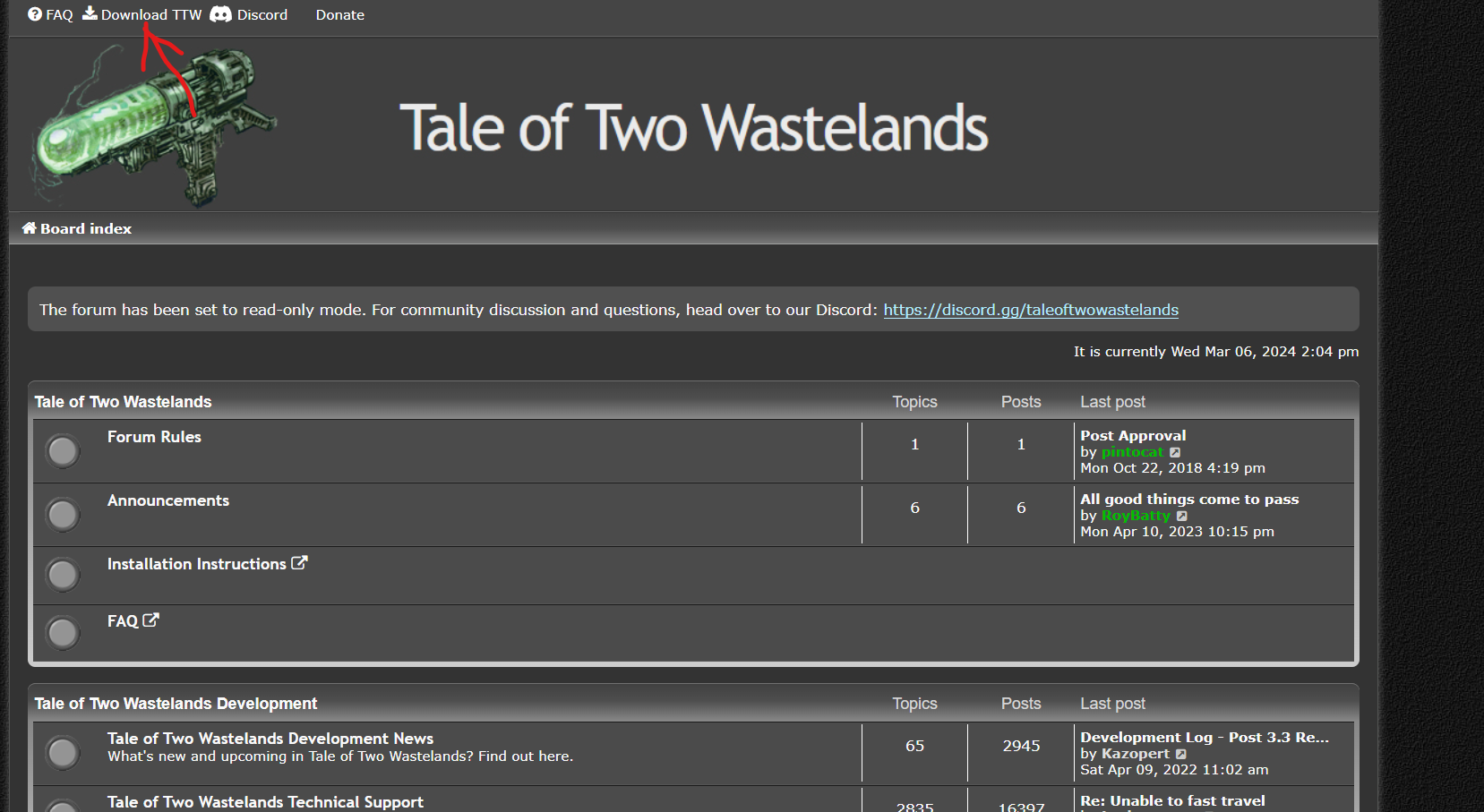
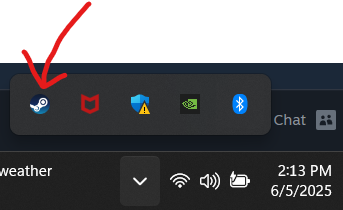 Go to https://taleoftwowastelands.com/ and click on ''Download TTW'' at the top of the website.
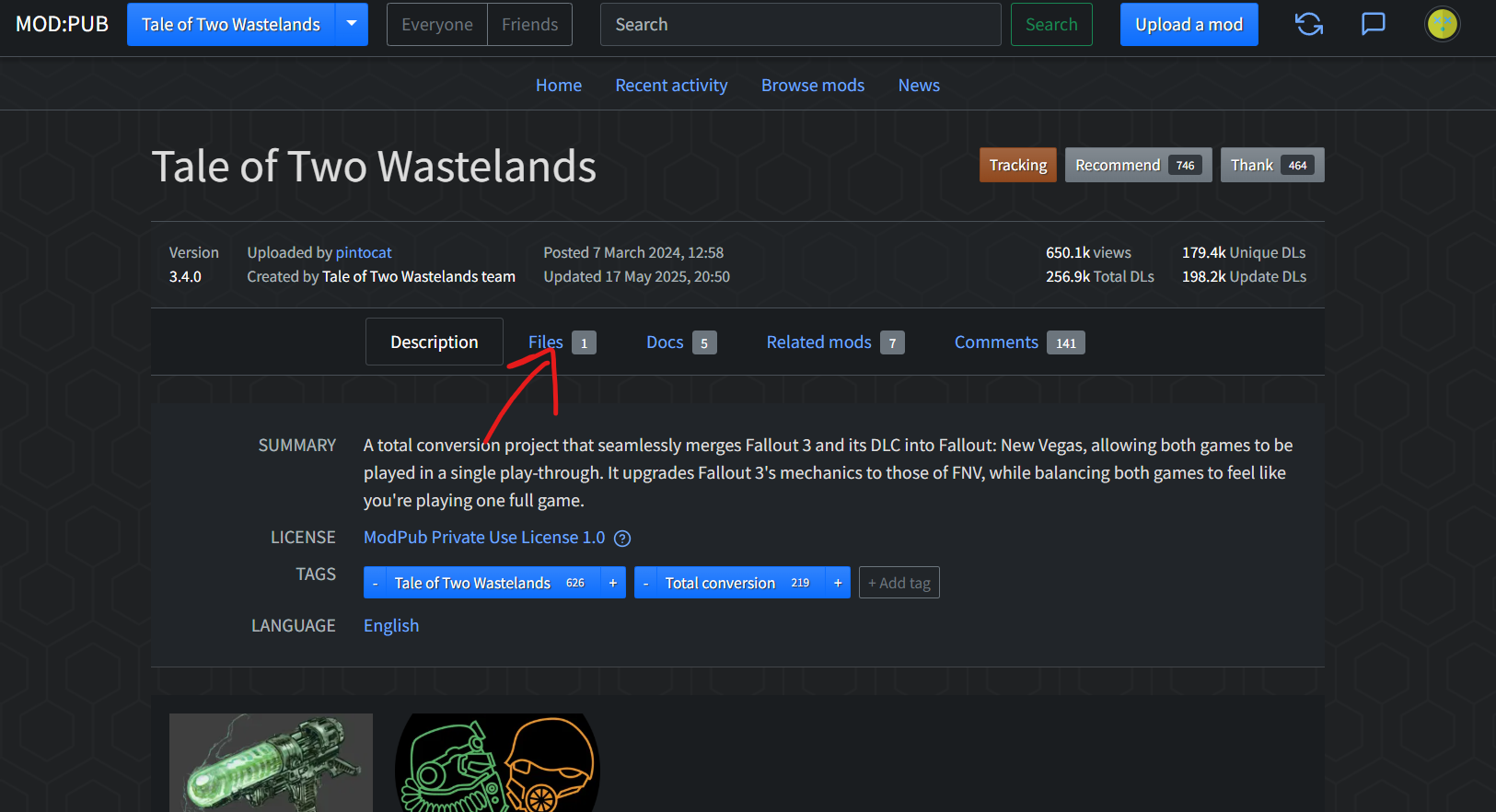
 You will have to make an account to download TTW, once you have done that.
Click manual download and it will download a zip folder, unzip it and put the folder on your desktop.
For extracting you can use winrar or 7zip, but most PC/Laptops come with one build in.
 Now make a second folder on your desktop and name it "TTW mod''.
Go into the folder we just unzipped and click on a program called ''TTW install''.
It will open up and ask you where Fallout 3 and Fallout New Vegas are installed, just click on browse for each and show where it is located.
Then for where you want TTW installed, browse and use the desktop folder we called ''TTW mod''.
Now click install and let the program do its thing, this will take a while.
Now done, go into MO2 and right click on the left side, then click ''Create empty mod'' and name it to your liking.
Now right click the empty mod and click ''Open in explorer'', move all the files from the ''TTW mod" into this folder.
Refresh the MO2 launcher and checkmark the mod to be active.
To make sure, go to the right bottom and click the arrow, then look if steam icon is there, if so right click and exit steam.
Then go into program files and drag the full steam folder from program files to desktop.
This is only needed to install ttw, after that you can return it back to program files if you want.
If the games are in program files, the ttw installer will not work at all.
Go to https://taleoftwowastelands.com/ and click on ''Download TTW'' at the top of the website.You will have to make an account to download TTW, once you have done that.Click manual download and it will download a zip folder, unzip it and put the folder on your desktop.
For extracting you can use winrar or 7zip, but most PC/Laptops come with one build in.
Now make a second folder on your desktop and name it "TTW mod''.Go into the folder we just unzipped and click on a program called ''TTW install''.
It will open up and ask you where Fallout 3 and Fallout New Vegas are installed, just click on browse for each and show where it is located.
Then for where you want TTW installed, browse and use the desktop folder we called ''TTW mod''.
Now click install and let the program do its thing, this will take a while.
Now done, go into MO2 and right click on the left side, then click ''Create empty mod'' and name it to your liking.
Now right click the empty mod and click ''Open in explorer'', move all the files from the ''TTW mod" into this folder.
Refresh the MO2 launcher and checkmark the mod to be active.
Custom ini.:
Click on the puzzle piece icon, then INI editor.
Go to the tab ''FalloutCustom ini''

Then paste the following and save:
[Audio]
bMultiThreadAudio=1
bUseAudioDebugInformation=0
iAudioCacheSize=16384
iMaxSizeForCachedSound=2048
[BackgroundLoad]
bSelectivePurgeUnusedOnFastTravel=1
bBackgroundLoadLipFiles=1
[Controls]
fForegroundMouseAccelBase=0
fForegroundMouseAccelTop=0
fForegroundMouseBase=0
fForegroundMouseMult=0
[Display]
bFull Screen=1
iPresentInterval=1
iTexMipMapSkip=0
[General]
bPreemptivelyUnloadCells=1
iNumHWThreads=3
SCharGenQuest=001FFFF8
SIntroMovie=
[Grass]
fGrassStartFadeDistance=11200
b30GrassVS=1
[Water]
bForceHighDetailReflections=0
[PipBoy]
fLightEffectFadeDuration=400
Go to the tab ''FalloutCustom ini''
Then paste the following and save:
[Audio]
bMultiThreadAudio=1
bUseAudioDebugInformation=0
iAudioCacheSize=16384
iMaxSizeForCachedSound=2048
[BackgroundLoad]
bSelectivePurgeUnusedOnFastTravel=1
bBackgroundLoadLipFiles=1
[Controls]
fForegroundMouseAccelBase=0
fForegroundMouseAccelTop=0
fForegroundMouseBase=0
fForegroundMouseMult=0
[Display]
bFull Screen=1
iPresentInterval=1
iTexMipMapSkip=0
[General]
bPreemptivelyUnloadCells=1
iNumHWThreads=3
SCharGenQuest=001FFFF8
SIntroMovie=
[Grass]
fGrassStartFadeDistance=11200
b30GrassVS=1
[Water]
bForceHighDetailReflections=0
[PipBoy]
fLightEffectFadeDuration=400
Script extender:
Go to https://github.com/xNVSE/NVSE/releases/ then scroll down to assets and download the latest version.
Or you can Download it from Nexus:
https://www.nexusmods.com/newvegas/mods/67883 New Vegas Script Extender (NVSE xNVSE)
You only need one of the two, not both as they do the same thing.
Once downloaded, Unzip the folder and move the contents into the root folder of Fallout New Vegas.
Or you can Download it from Nexus:
https://www.nexusmods.com/newvegas/mods/67883 New Vegas Script Extender (NVSE xNVSE)
You only need one of the two, not both as they do the same thing.
Once downloaded, Unzip the folder and move the contents into the root folder of Fallout New Vegas.
4GB Patcher:
This mod is not needed to play, but extremely recommended.
https://www.nexusmods.com/newvegas/mods/62552?tab=description 4GB patcher
The 4GB patcher can only be installed manually, so go to the files tab and download first ''4GB Patcher'' manual, and then slow download.
When the download is done, extract it and move the FNVpatch to your fallout new vegas root folder.
When you have the FNVpatch in your root folder, double click it and a batch file will open, give it a couple seconds to patch and it then will tell you to press any button to close the batch file.
Now the game is from 2GB patched to 4GB, if you use texture mods, this will make it less likely to crash the game (Try to use as many 1K textures where possible)
https://www.nexusmods.com/newvegas/mods/62552?tab=description 4GB patcher
The 4GB patcher can only be installed manually, so go to the files tab and download first ''4GB Patcher'' manual, and then slow download.
When the download is done, extract it and move the FNVpatch to your fallout new vegas root folder.
When you have the FNVpatch in your root folder, double click it and a batch file will open, give it a couple seconds to patch and it then will tell you to press any button to close the batch file.
Now the game is from 2GB patched to 4GB, if you use texture mods, this will make it less likely to crash the game (Try to use as many 1K textures where possible)
Essential mods:
These mods are essential and basic requirements for most mods on Nexus.
Mods:
https://www.nexusmods.com/newvegas/mods/70801 Improved Console (NVSE)
https://www.nexusmods.com/newvegas/mods/65906 Console Paste Support
https://www.nexusmods.com/newvegas/mods/77415 ROOGNVSE Plugin
https://www.nexusmods.com/newvegas/mods/58277 JIP LN NVSE Plugin
https://www.nexusmods.com/newvegas/mods/66927 JohnnyGuitar NVSE
https://www.nexusmods.com/newvegas/mods/72541 ShowOff xNVSE Plugin
https://www.nexusmods.com/newvegas/mods/66537 NVTF - New Vegas Tick Fix
https://www.nexusmods.com/newvegas/mods/66347 lStewieAl's Tweaks and Engine Fixes
https://www.nexusmods.com/newvegas/mods/80993 lStewieAl's Engine Optimizations
https://www.nexusmods.com/newvegas/mods/71973 Combat Lag Fix (NVSE)
https://www.nexusmods.com/newvegas/mods/84823 VATS Lag Fix
https://www.nexusmods.com/newvegas/mods/80666 ActorCause Save Bloat Fix
https://www.nexusmods.com/newvegas/mods/71336 kNVSE Animation Plugin
https://www.nexusmods.com/newvegas/mods/57174 UIO - User Interface Organizer
https://www.nexusmods.com/newvegas/mods/68714 FNV Mod Limit Fix
Mods:
https://www.nexusmods.com/newvegas/mods/70801 Improved Console (NVSE)
https://www.nexusmods.com/newvegas/mods/65906 Console Paste Support
https://www.nexusmods.com/newvegas/mods/77415 ROOGNVSE Plugin
https://www.nexusmods.com/newvegas/mods/58277 JIP LN NVSE Plugin
https://www.nexusmods.com/newvegas/mods/66927 JohnnyGuitar NVSE
https://www.nexusmods.com/newvegas/mods/72541 ShowOff xNVSE Plugin
https://www.nexusmods.com/newvegas/mods/66537 NVTF - New Vegas Tick Fix
https://www.nexusmods.com/newvegas/mods/66347 lStewieAl's Tweaks and Engine Fixes
https://www.nexusmods.com/newvegas/mods/80993 lStewieAl's Engine Optimizations
https://www.nexusmods.com/newvegas/mods/71973 Combat Lag Fix (NVSE)
https://www.nexusmods.com/newvegas/mods/84823 VATS Lag Fix
https://www.nexusmods.com/newvegas/mods/80666 ActorCause Save Bloat Fix
https://www.nexusmods.com/newvegas/mods/71336 kNVSE Animation Plugin
https://www.nexusmods.com/newvegas/mods/57174 UIO - User Interface Organizer
https://www.nexusmods.com/newvegas/mods/68714 FNV Mod Limit Fix
Video Guide:
Important notes:
Four IMPORTANT Notes:
1. make sure to see if a mod needs a requirement, on the description page it will tell you if and what is needed for the mod to work, it will then also give you the links to the mods.
2. make sure you check the amount of plugins you are using, you can see it in Vortex under the tab plugins and then look in the top right where it says active
for MO2 it shows on the right side next to active.
Your max is 255 plugins, not every mod will add plugins (Usually texture mods don't, but mods that add content do)
3. It is highly recommended to use 1K texture mods, the game has a 2Gb cache and with the 4GB patcher will double that cache.
when this cache goes over the 2 or 4GB it will crash the game, textures will fill this cache up fast.
4. You should see this as a Fallout New Vegas mod, meaning that if you are adding more mods to the game.
The mods have to be Fallout New Vegas compatible, fallout 3 mods don't work on this game.
To help you out, here is a link to only the Fallout New Vegas mods: https://www.nexusmods.com/games/newvegas/mods
1. make sure to see if a mod needs a requirement, on the description page it will tell you if and what is needed for the mod to work, it will then also give you the links to the mods.
2. make sure you check the amount of plugins you are using, you can see it in Vortex under the tab plugins and then look in the top right where it says active
for MO2 it shows on the right side next to active.
Your max is 255 plugins, not every mod will add plugins (Usually texture mods don't, but mods that add content do)
3. It is highly recommended to use 1K texture mods, the game has a 2Gb cache and with the 4GB patcher will double that cache.
when this cache goes over the 2 or 4GB it will crash the game, textures will fill this cache up fast.
4. You should see this as a Fallout New Vegas mod, meaning that if you are adding more mods to the game.
The mods have to be Fallout New Vegas compatible, fallout 3 mods don't work on this game.
To help you out, here is a link to only the Fallout New Vegas mods: https://www.nexusmods.com/games/newvegas/mods
Want to mod the game further?:
Like and Favorite

More Fallout: New Vegas guides
- Simple Guide to Setting up New Vegas in 2026★ 5 (2.9k)122k views8k ♥9 minUpdated May 6
- New Vegas 2024 Essential Modding Guide★ 5 (1.4k)112k views3.9k ♥37 minUpdated Jan 19
- Fallout:NV Console Command List / Weapons / Armor / NPC's and World Objects★ 5 (948)67k views2.4k ♥33 minUpdated Aug 6, 2025
- 100% Achievement Guide: Fallout - New Vegas★ 5 (1.5k)37k views4.6k ♥98 minUpdated May 9
- Interactive Map★ 5 (614)27k views957 ♥1 minBulgarianUpdated Jan 30
- Complete Achievement Guide (Includes DLC)★ 5 (808)23k views2.1k ♥26 minUpdated Aug 5, 2025


This guide was created by its original author on the Steam Community. Are you the author and want it removed? Request removal.