How to Save Your Source Filmmaker Workshop Addons
Step One - Find Your Workshop Addons
You'll find all the Workshop addons installed in SFMFOLDER/workshop.
Step Two - Find the usermod folder
Step Three - Backup and Move
First, find the elements you want to save. Models are stored in SFMFOLDER/workshop/models, and maps are stored in SFMFOLDER/workshop/maps. Knowing the name of the addon, as well as the addon author, will help immensely, as often the relevant folders will be tagged as such.
However, there's a chance you may have to separate endangered addons' files from ones that may continue to persist, in which case, you may have to make folders just for them. Here's an example of multiple addons in the same folder:
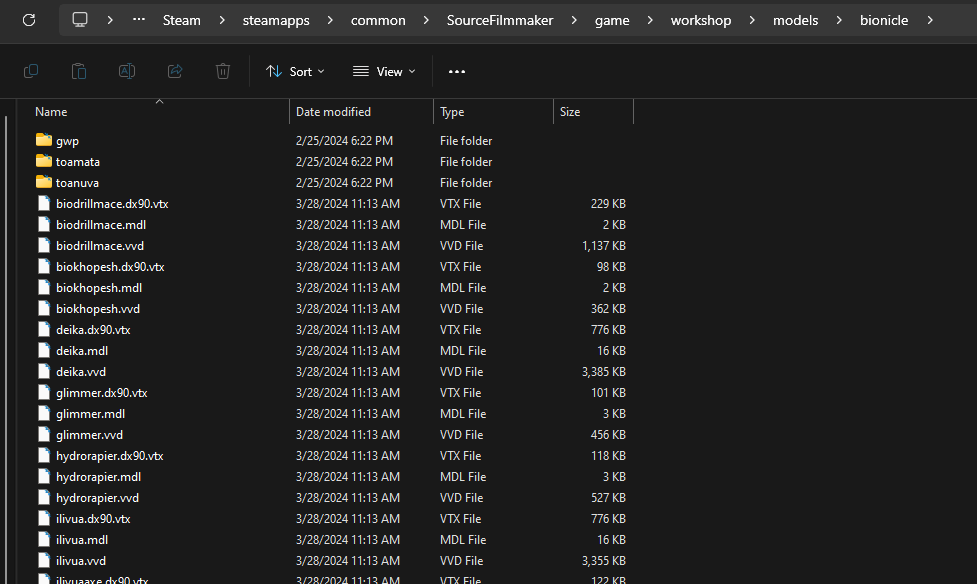
Then, backup the addons in a location outside of Steam folders, and simply move everything related to the endangered addons from the Workshop folder to the Usermod folder. Make sure to unsubscribe from the addons before relaunching Source Filmmaker to avoid conflicts.
Thank you for reading this guide!
 I know, I know. This guide isn't very expansive; I've probably missed a lot. I plan on expanding this guide as I go along, but hopefully this covers the basics.
If you guys are interested, I have a small little group on Discord and Steam called TGif Gamer. If you like nerding over games and content creation, you'lll LOVE that group. Go check it out - links in my profile.
God bless and stay safe, guys! 🙏🏻💖😎
- Changing Textures Using Material Overrides★ 5 (1.4k)41k views2.7k ♥5 minUpdated Jul 26, 2014
- Manually Updating TF2 Content★ 5 (1.3k)35k views1.9k ♥2 minUpdated Nov 26, 2025
- The Fundamentals of SFM: For Beginners★ 5 (1.3k)25k views3.3k ♥55 minUpdated Apr 29
- Ваш первый постер★ 5 (1.1k)22k views2k ♥5 minRussianUpdated Oct 22, 2024
- Getting Gmod Workshop stuff too SFM★ 5 (510)15k views1.3k ♥1 minBulgarianUpdated Aug 4, 2015
- Animation Guide★ 5 (704)14k views1.9k ♥6 minUpdated Apr 9, 2023




- Upgrading to PremiumTeam Fortress 2★ 5 (20k)1441k views11k ♥6 minUpdated May 11, 2022
- No More Room in Hell Official ManualNo More Room in Hell★ 5 (2.8k)569k views2.1k ♥29 minUpdated Apr 22, 2019
- NMRiH Community Hosting GuidesNo More Room in Hell★ 5 (526)351k views653 ♥1 minUpdated Aug 10, 2022
- ULTIMATE GUIDE FOR GAME DEV TYCOONGame Dev Tycoon★ 5 (5.8k)326k views10k ♥4 minUpdated 23 Jan, 2014
- How to 'Git Gud' Soon™MORDHAU★ 5 (2k)318k views3k ♥68 minUpdated Nov 16, 2024
- Лучшие кооперативные игры SteamPAYDAY 2★ 5 (1.5k)315k views2.1k ♥56 minRussianUpdated Apr 27, 2025






This guide was created by its original author on the Steam Community. Are you the author and want it removed? Request removal.