How to use ReShade with DXVK Without File Conflicts
⚠️ Important Warning: Use at Your Own Risk

The environment variable affects all applications, so ReShade will use DXVK in all games.
Potential stability issues: ReShade and DXVK may have incompatibilities with certain games.
With Steam, you may need to close Steam and set the variable globally (not just in a batch), as Steam may restart the process without the reshade.me variable.
You need Vulkan 1.3 support on your GPU.
There are other additional risks you should be aware of when using ReShade + DXVK together via RESHADE_MODULE_PATH_OVERRIDE in Source Filmmaker (SFM):
1. Rendering glitches or visual glitches
Some ReShade shaders may not work correctly over Vulkan via DXVK. For example:
Blur effects (DOF), SSAO, ray tracing, etc., may:
Generate black screens.
Break model lighting.
Display visual artifacts (pixelation, flickering).
The Source (SFM) engine itself is not designed for Vulkan, and using DXVK is a hack that sometimes doesn't behave as expected.
2. ReShade may not capture correctly in render mode
In SFM, if you use Render Movie, it's common for ReShade to only be applied to the viewport, not the final file.
With DXVK, this can get worse. Many people report rendering with no effects or even a black screen.
To avoid this, you would need to capture the screen with OBS or another external tool—which reduces the final quality.
Environment Variables Affect the Entire Windows
RESHADE_MODULE_PATH_OVERRIDE is not game-specific if you set it as a system variable. Therefore:
Any other game with ReShade will try to load your DXVK d3d9.dll, even if it doesn't need to.
This can break other games that already work fine.
Or even cause ReShade to not load properly outside of SFM.
Possible Blocks by Antivirus or Windows Defender
DXVK and ReShade inject code into processes, which is typical malware behavior for antivirus programs.
4. If the DLLs are modified, signed by a third party, or misconfigured, some antivirus programs:
Can quarantine them.
Block them upon execution.
Flag SFM as suspicious (or even delete it).
Future Incompatibility
This method relies on system hacks and unofficial behavior.
ReShade 5.0+ no longer properly supports DXVK on 32-bit without modifications.
Updating Vulkan, ReShade, or DXVK may break compatibility and require you to reconfigure everything from scratch.
This is all because SFM is a 32-bit software, which means there will be problems. Use this guide at your own risk.
📖 Introduction
This guide will tell you how to:
Setting up ReShade and DXVK correctly
Avoiding file conflicts like duplicate DLLs
Making sure both tools work at the same time
Whether you're improving performance with Vulkan using DXVK or enhancing visuals with ReShade, this guide will help you do both smoothly.
❓ Why can’t we use these two .dll files at once?
SFM can only load one main d3d9.dll.
SFM is a 32-bit software but this guide will explain how to use both
Requirements before installing This
https://vulkan.gpuinfo.org/listdevices.php
https://www.youtube.com/watch?v=mOOtg4lVqjk
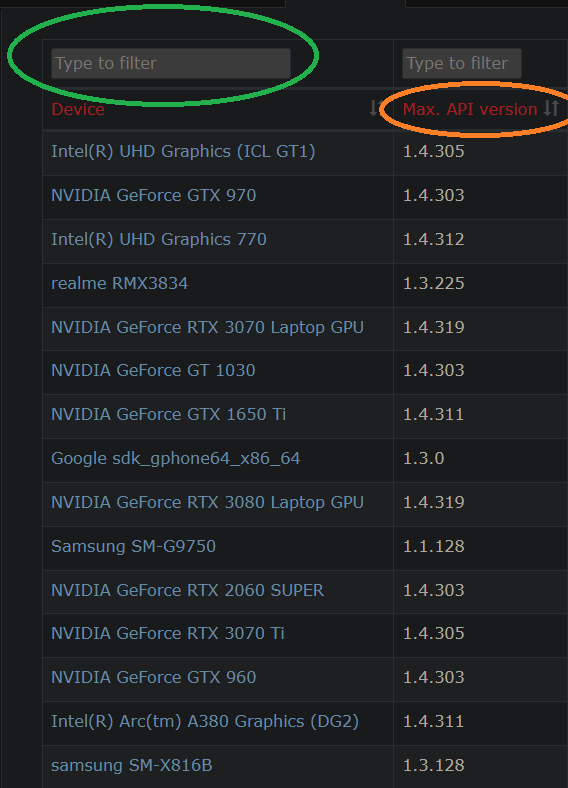
Inside the green circle is the search bar location and inside the orange circle is the API, you need 1.3 or higher for this to work
What Each DLL and .json File Does
REMEMBER THESE
d3d9.dll → this is ReShade's d3d9
Reshade32.dll → this is the main ReShade module
d3d9.dll (From DXVK folder) → this is DXVK's d3d9
ReShade32.json and ReShade32_XR.json → These are auto-generated by ReShade.
Zip File Downloads (Don't forget to Unzip the Files because it's very important)
You need this zip file for this
Here's the installation zip file download for this
https://drive.google.com/file/d/1bf2cMDEdsMm5U-I3NsokoHWlrk0sMcpo/view
Here's another zip file you need to make effects working
Just click download and put it in the bin folder in SFM files don't forget to unzip it
https://drive.google.com/file/d/1ixHozFaNKFrV5KlbyroP7enRKLsXynj7/view?usp=sharing

Once you install the Zip File, now Unzip the file.Here's a video how to unzip files (Unzipping files are very important to make VMT Edit Work)
https://www.youtube.com/watch?v=2zl-Vl9iQo0
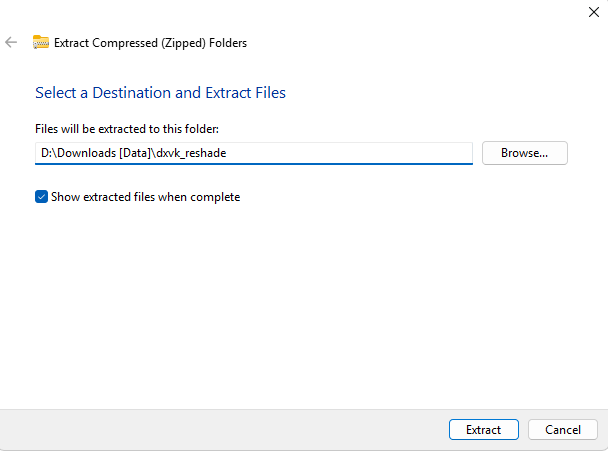
How to install them and make them work?
Now you have the unzipped file, we can now install it into SFM
Follow these steps exactly to install the setup:
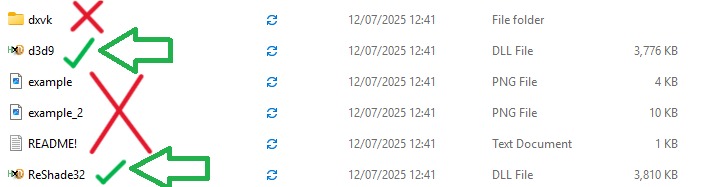
Reshade32.dll and d3d9.dll (The reshade one, "NOT" FROM THE DXVK folder.) into
sourcefilmmaker\game and sourcefilmmaker\game\bin File location
The files that have the green ticks are the correct ones, they look like this (Press it to zoom into the picture)
Step 2: Copy the dxvk folder and paste in it in sourcefilmmaker\game
The dxvk folder looks like this (Press it to zoom into the picture) Step 3: For the .json files paste in sourcefilmmaker\game and sourcefilmmaker\game\bin
The .json files looks like this (Press it to zoom into the picture)
 Step 4: Now we need to go the windows taskbar and search for environment variables
 It will look like this, just open it (Press it to zoom into the picture)
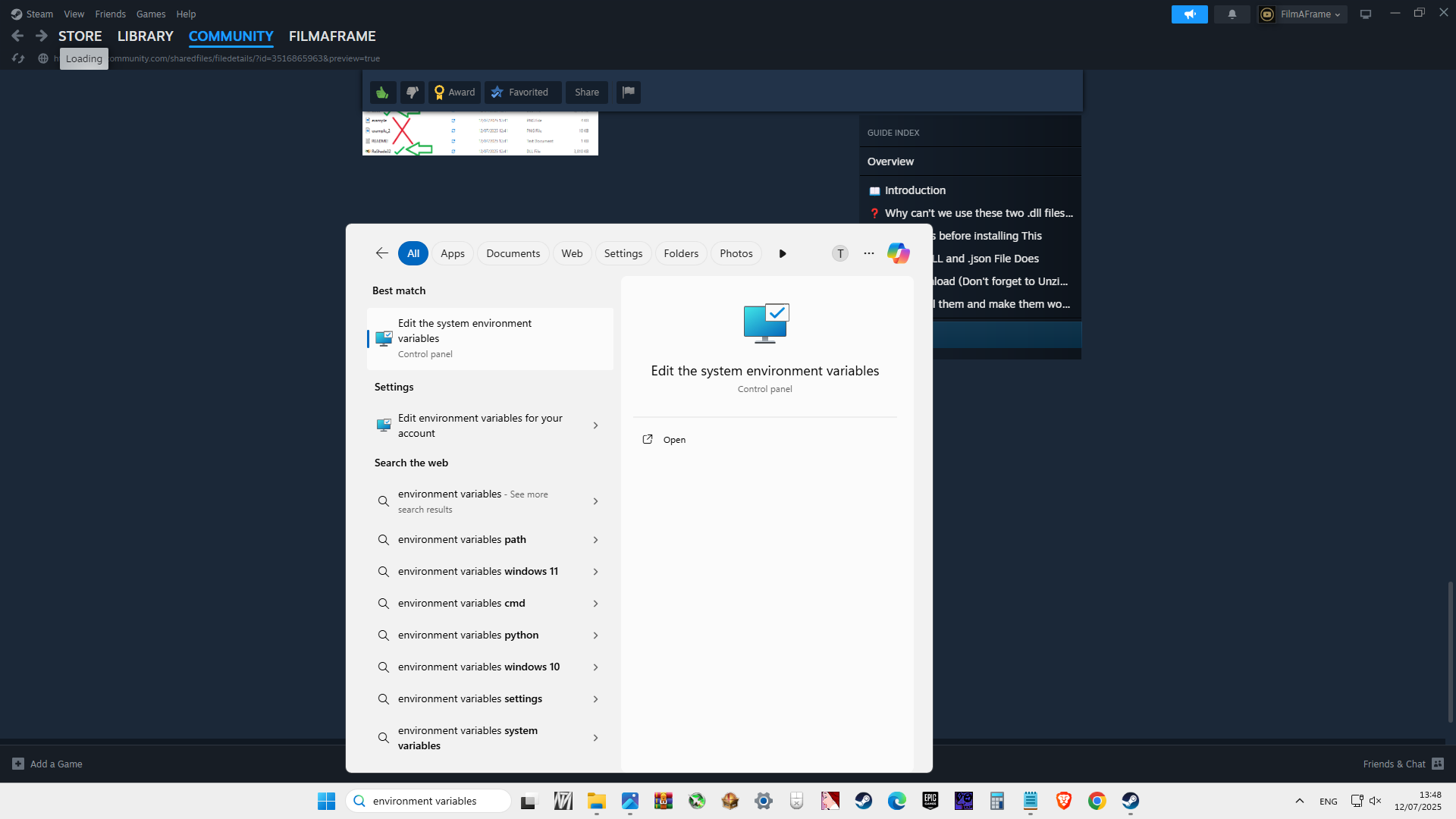 If it looks the picture on the left then its correct. But if it looks like the picture in the right, go into the "advanced" tab and press "Environment Variables" at the bottom-right corner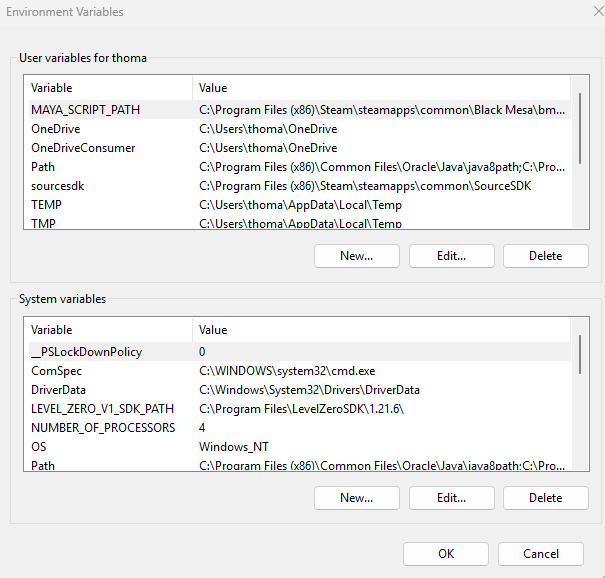
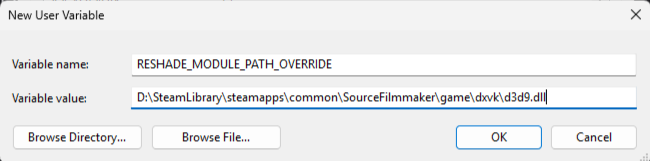
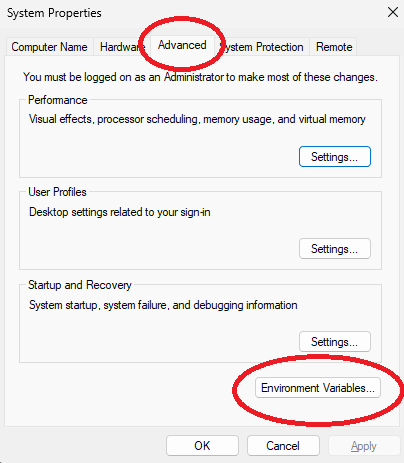 Step 5: Click on New
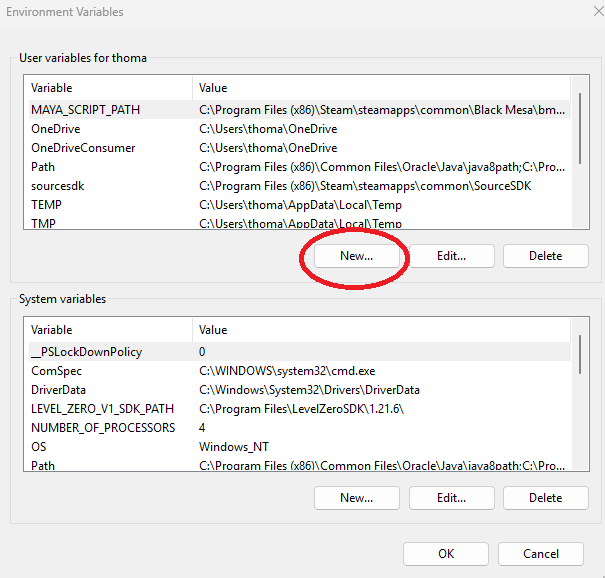 It looks like this (Press it to zoom into the picture)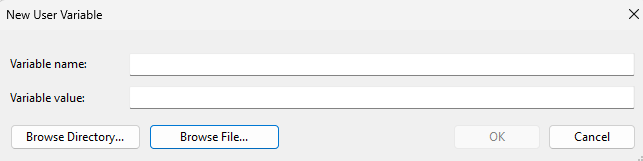
Now add to the variable name section
RESHADE_MODULE_PATH_OVERRIDE
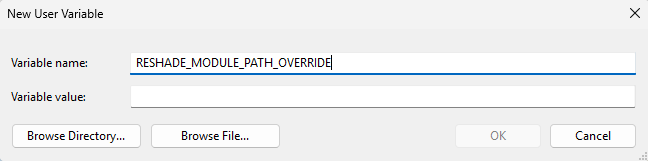
In the Variable Value section you need to add the file path to the DXVK folder you put in and click on d3d9.dll
Click on Browse File then find sourcefilmmaker\game\dxvk then click on d3d9.dll (The d3d9.dll file in the DXVK folder is the one you need to choose when you press "Browse File"
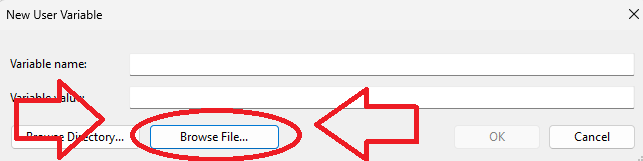
(Press it to zoom into the picture)
Don't choose the DXVK folder I want you to press the d3d9.dll "IN" the DXVK folder(Press the picture to zoom)
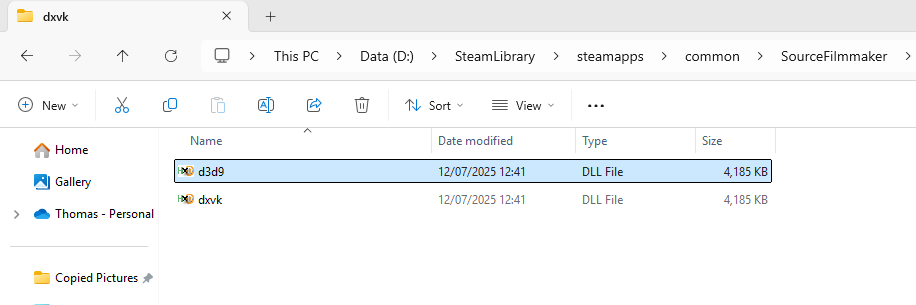 It should look like this now, if it does look like that press "Ok"
(Press the picture to zoom)
https://drive.google.com/file/d/1xC1qP9BwViFKX4Zx2j8GPqeaSRmvsfAN/view
Once you install that put it in sourcefilmmaker\game\bin
This is used to make your session render with Reshade
Now add this command to your launch options before you render with reshade
-----------------------------------------------------------------------------------------------------
Add this in your launch options first
+r_hunkalloclightmaps 0
-----------------------------------------------------------------------------------------------------
(Press the picture to zoom)
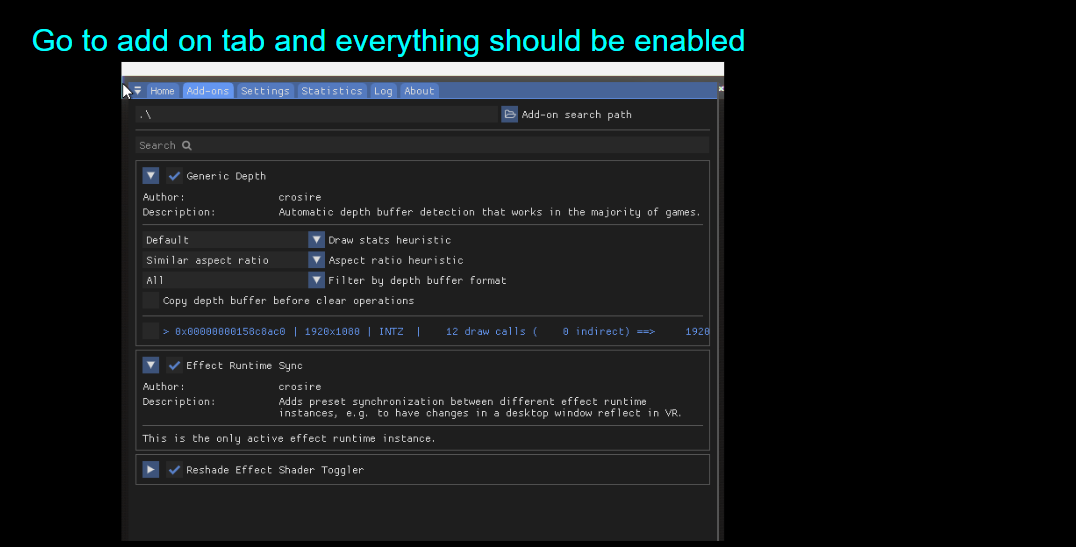
If you see a text in the Home section that says
No effect files (.fx) found in the configured effect search paths.
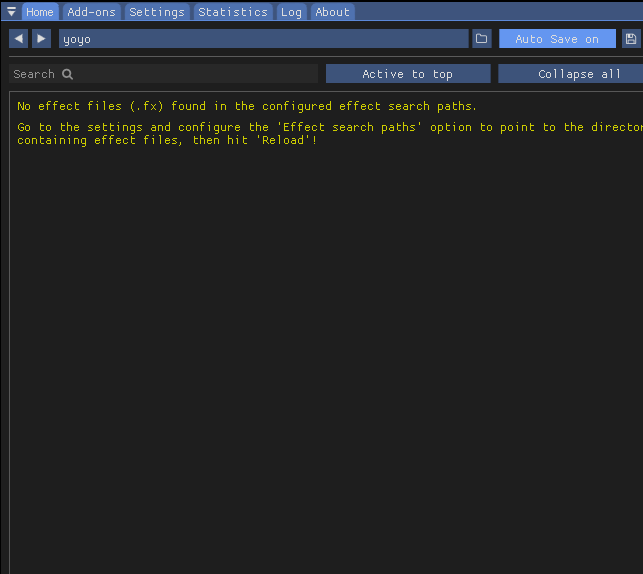
Here's how to fix it
1. Open the Settings tab.
- Find and click Effect Search Paths.
- Browse to your ReShade-Shaders folder located in the bin folder, then select the Shaders folder.
- Next, click Texture Search Paths.
- Go back to the ReShade-Shaders folder in the bin folder and select the Textures folder.
- Finally, return to Home and click Reload.
That should do it!
You are finished now, try opening SFM and see if it works
If that happens to you,
Try removing the reshade_module_path for the environmental variable thing and turn it back on to see if it works
Bug Solutions
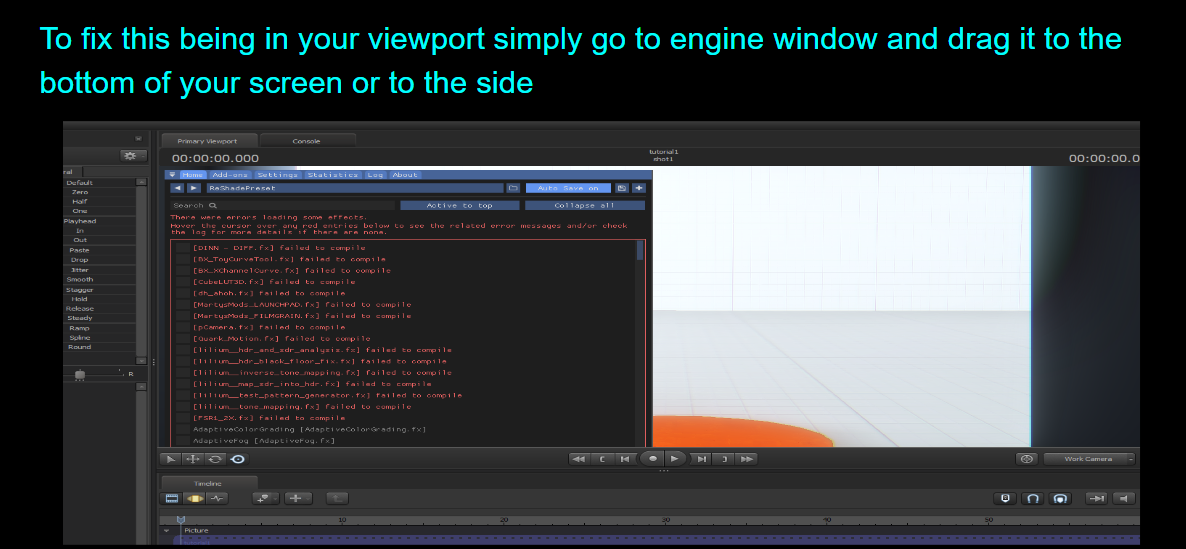
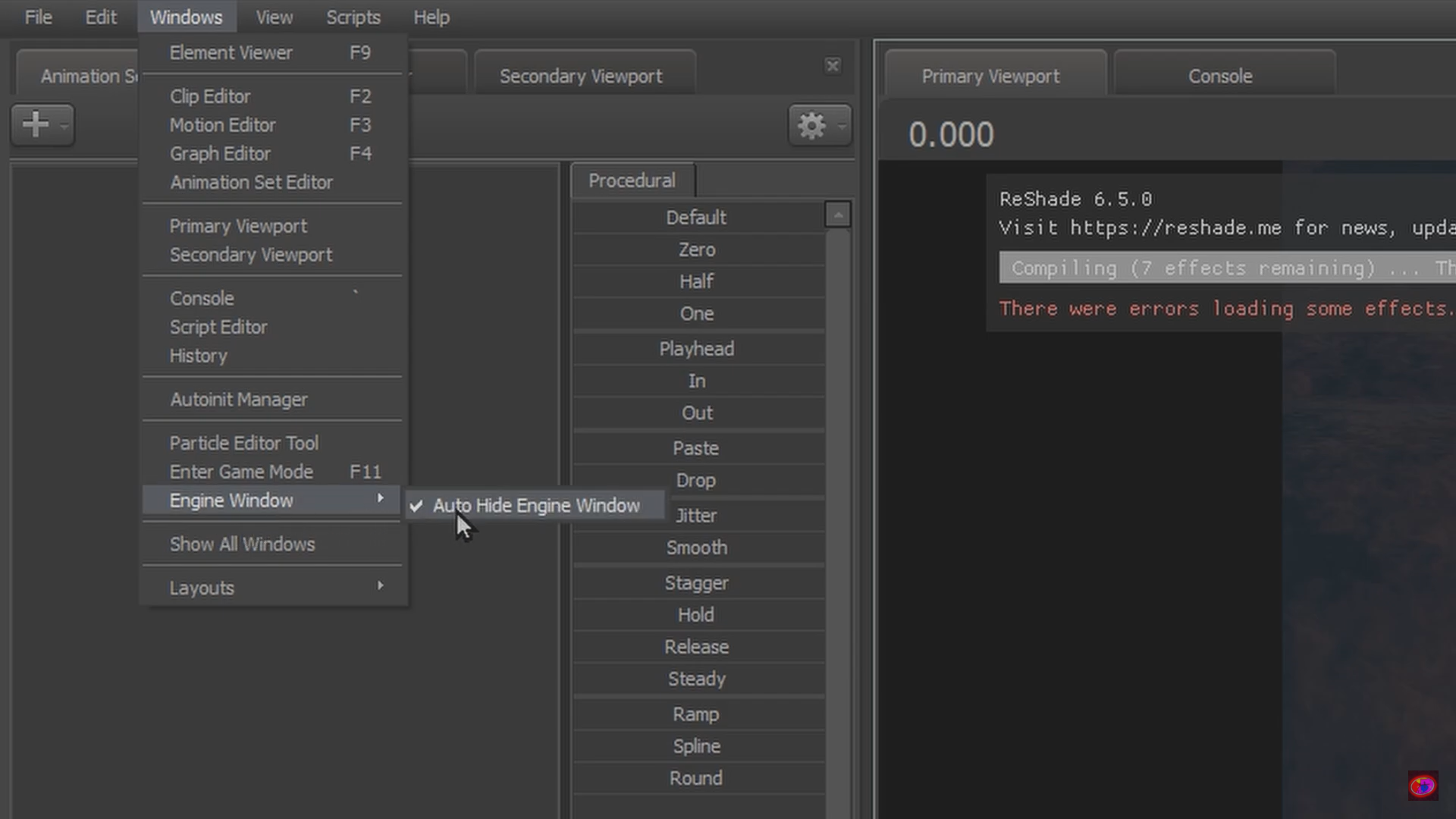 (Click on the pictures to zoom)
To fix Reshade appearing in your viewport screen,
Click on the Home button on your keyboard
If that doesn't work click on "Window" on the top left corner and go to "Engine Window" and press "Auto Hide Engine Window"
If you see a text in the Home section that says
No effect files (.fx) found in the configured effect search paths.
Here's how to fix it
1. Open the Settings tab.
- Find and click Effect Search Paths.
- Browse to your ReShade-Shaders folder located in the bin folder, then select the Shaders folder.
- Next, click Texture Search Paths.
- Go back to the ReShade-Shaders folder in the bin folder and select the Textures folder.
- Finally, return to Home and click Reload.
That should do it!
Your Finished! Here are my other interesting guides
If you like my guide, like and subscr- I mean click the favorite button on my guide. Also I put a lot of effort into this, donating steam points would make my happy :)
Faster and Easier Way To Edit VMT Files (VMT Editor)
https://steamcommunity.com/sharedfiles/filedetails/?id=3521721691
How to use dxvk + unsupported gpu patch
https://steamcommunity.com/sharedfiles/filedetails/?id=3577509015
- Changing Textures Using Material Overrides★ 5 (1.4k)41k views2.7k ♥5 minUpdated Jul 26, 2014
- Manually Updating TF2 Content★ 5 (1.3k)35k views1.9k ♥2 minUpdated Nov 26, 2025
- The Fundamentals of SFM: For Beginners★ 5 (1.3k)25k views3.3k ♥55 minUpdated Apr 29
- Ваш первый постер★ 5 (1.1k)22k views2k ♥5 minRussianUpdated Oct 22, 2024
- Getting Gmod Workshop stuff too SFM★ 5 (510)15k views1.3k ♥1 minBulgarianUpdated Aug 4, 2015
- Animation Guide★ 5 (704)14k views1.9k ♥6 minUpdated Apr 9, 2023




- Upgrading to PremiumTeam Fortress 2★ 5 (20k)1441k views11k ♥6 minUpdated May 11, 2022
- No More Room in Hell Official ManualNo More Room in Hell★ 5 (2.8k)569k views2.1k ♥29 minUpdated Apr 22, 2019
- NMRiH Community Hosting GuidesNo More Room in Hell★ 5 (526)351k views653 ♥1 minUpdated Aug 10, 2022
- ULTIMATE GUIDE FOR GAME DEV TYCOONGame Dev Tycoon★ 5 (5.8k)326k views10k ♥4 minUpdated 23 Jan, 2014
- How to 'Git Gud' Soon™MORDHAU★ 5 (2k)318k views3k ♥68 minUpdated Nov 16, 2024
- Лучшие кооперативные игры SteamPAYDAY 2★ 5 (1.5k)315k views2.1k ♥56 minRussianUpdated Apr 27, 2025






This guide was created by its original author on the Steam Community. Are you the author and want it removed? Request removal.