A Quicker Way to Sort Unknown Controls
Introduction
SFM models in general lack consistency for control names; padded numbers, word separators, prefixes like "Bip", "Def", L/R for different sides, etc. SFM uses a single big file that lists every control it can recognise. If your control isn't on the list, it gets dumped in "Unknown".
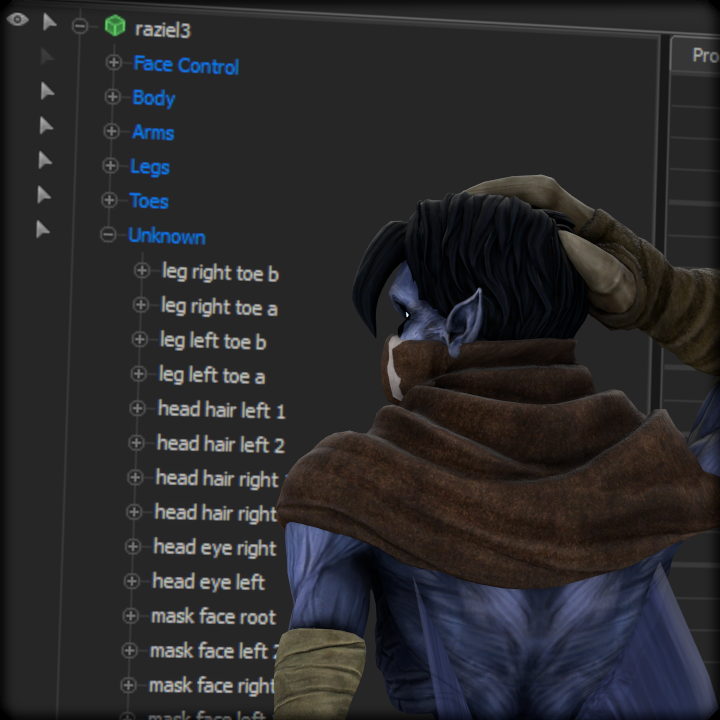 SFM_DefaultAnimationGroups.txt is that big file, and it's just a text file with a list of controls, grouped by category. To fix the "Unknown" category we need to copy the unknown control(s) into that file. The simplest way is to just type the control name, but this takes time.
Using SFM's preset creation and a quick replace function in a text editor, we can export controls to a text file and then insert them into the SFM_DefaultAnimationGroups.txt file. All you need is SFM itself, a model, and Notepad++.
Exporting the Controls List to a file
- First up, go ahead and open SFM_DefaultAnimationGroups.txt with Notepad++. It's located in SourceFilmmaker\game\platform\cfg. The full path there depends on where you've installed SFM, but "platform" is in the same place "usermod" and "workshop" are.
- Launch SFM, and spawn the model whose controls you want to organise.
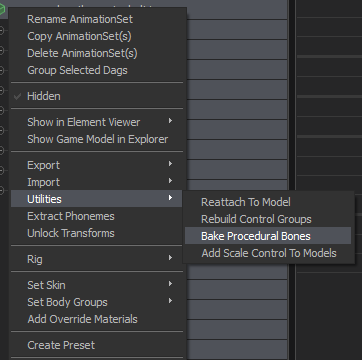
- Bake procedural bones on the model so that you don't miss any jiggle/twist bones.
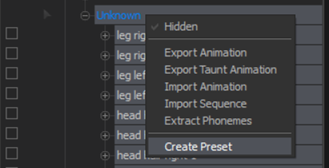
- Select just the "Unknown" category header, and right click it. Select "Create Preset".
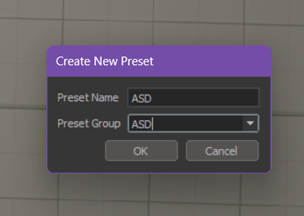
- Give them whatever names you want in the following dialogue box. It doesn't matter.
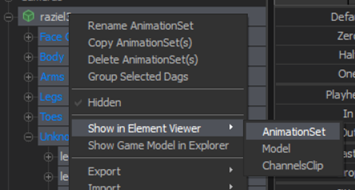
- Right click the model, go to Show in Element Viewer, and then select Animation Set.
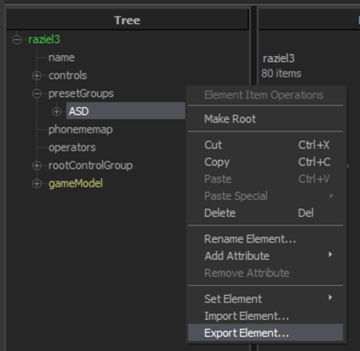
- In the Element Viewer Tab, expand the Preset Groups entry, right click your new Group, and select Export Element...
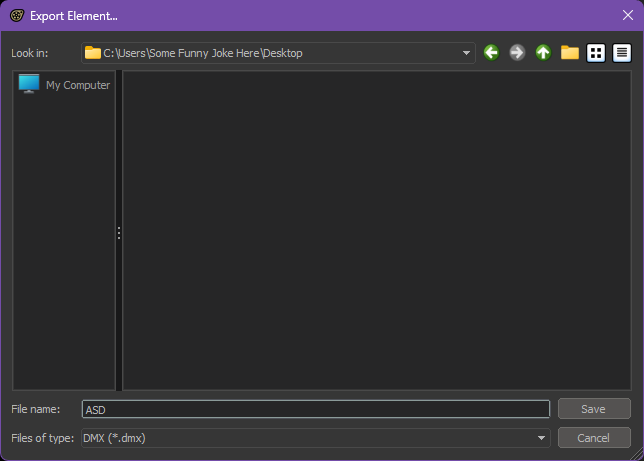
- SFM will prompt you to say where to save the file. I just save it to the Desktop.
- Open your newly saved file in Notepad++.
Preparing the file
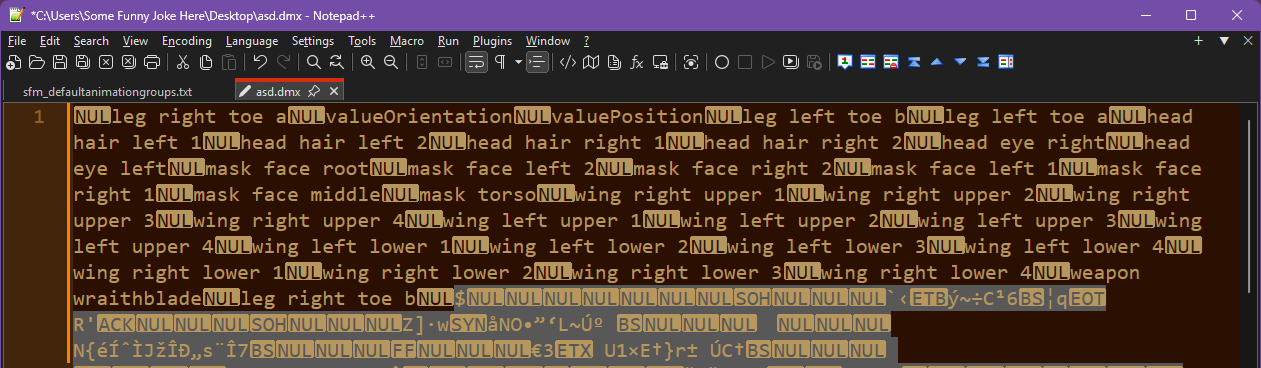
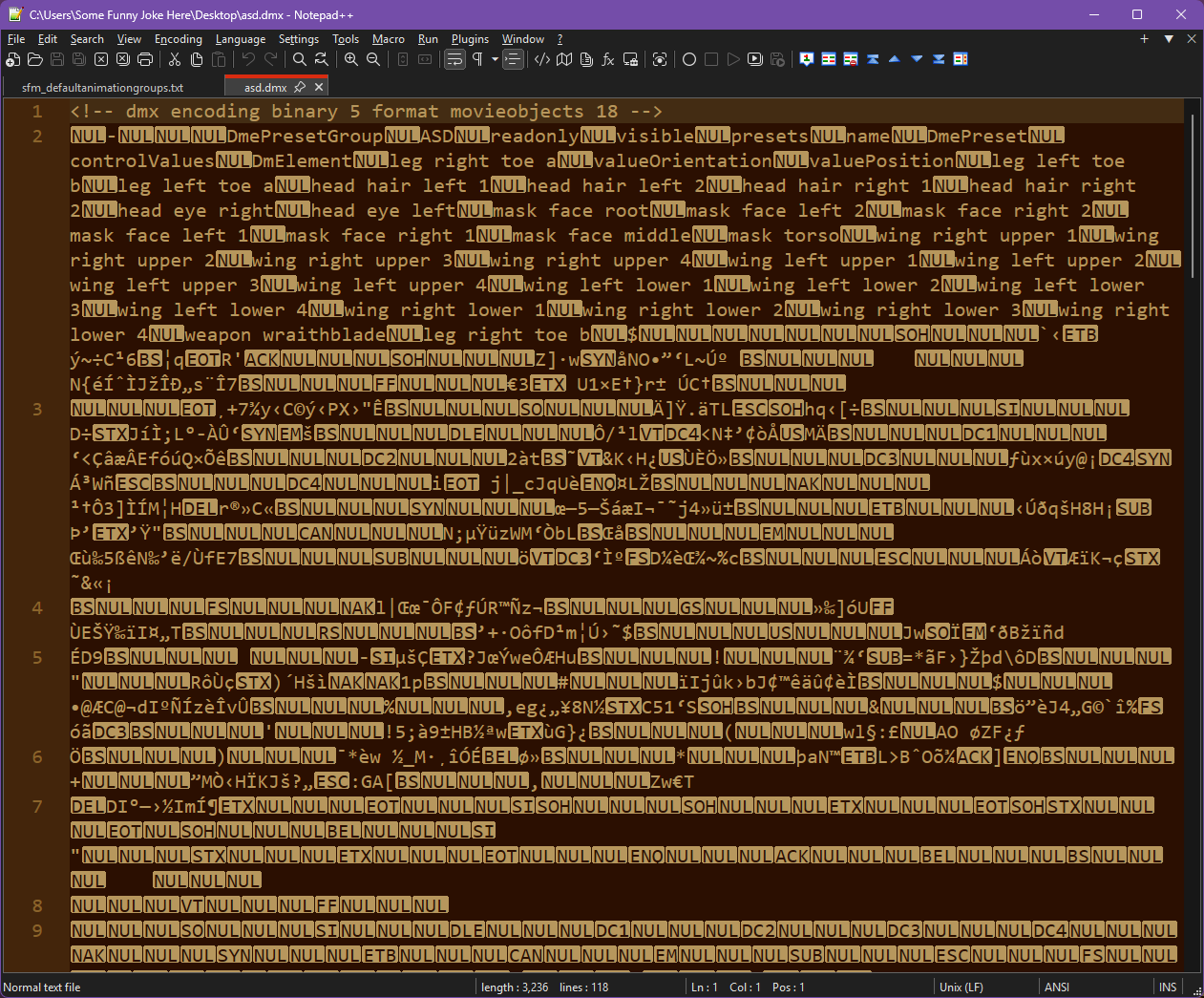 So you might be wondering, "Ok, what the hell is this?" Well, in there amongst a load of NUL blobs and other fluff is our controls list.
The next steps are pretty simple, despite what this mess might make you think.
- First we want to clear the garbage at the start of the file. Look for the first control name in there, and delete everything before the NUL blob next to it.
- Second, do the same for the garbage at the end. The controls are all together, so you don't need to check the rest of the file for stray entries.
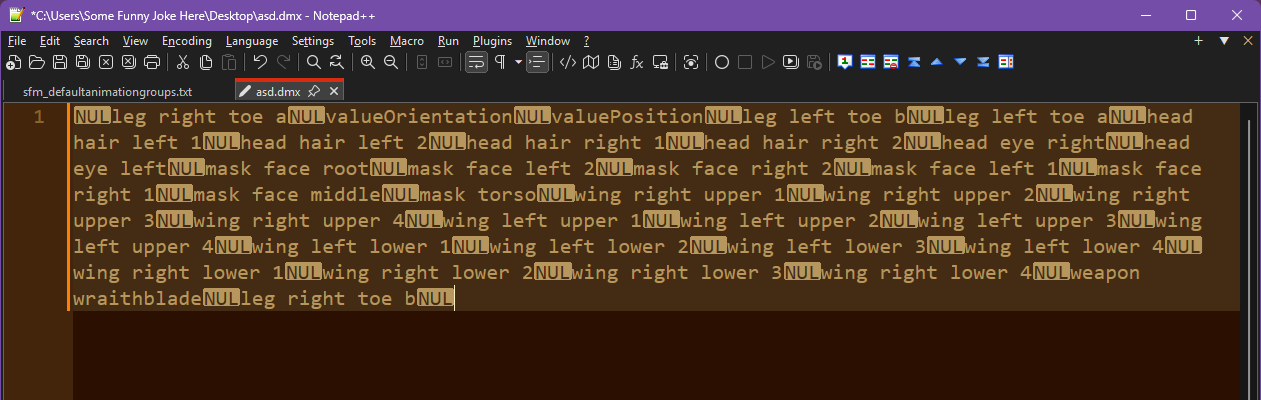
- Now you're left with a file similar to what is below; a list of controls separated by NUL blobs.
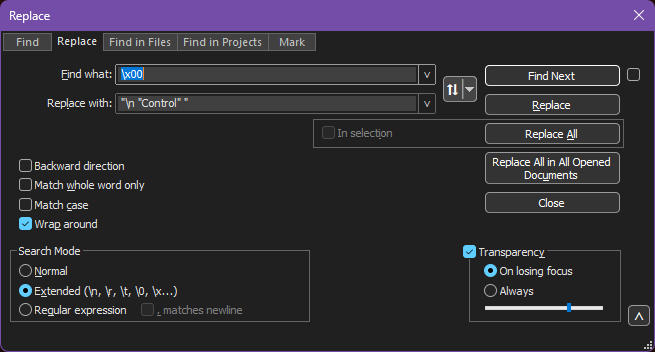
- Press Control+H to show the Replace dialogue.
In the bottom-left corner, select "Extended" as the Search Mode.
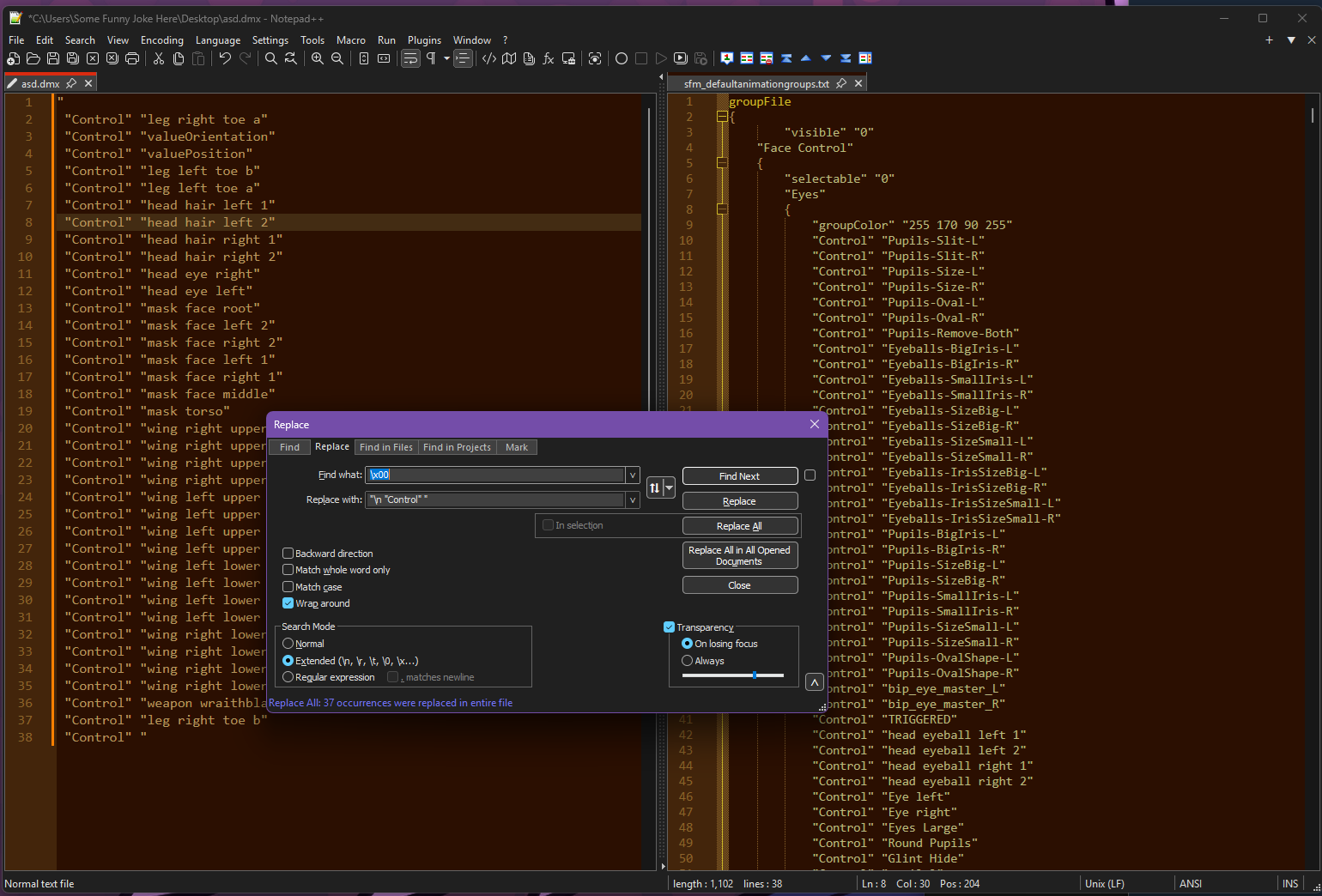
In the "Find What" box, enter\x00In the "Replace With" box, enter"\n"Control" "Hit "Replace All"! - Now all of those controls are formatted ready to be cut and pasted into your DefaultAnimationGroups file! This one here is my heavily modified one, so don't worry if yours is different.
Something to note at this point - for whatever reason, SFM leaves in some extra entries called "LeftValue", "RightValue", "Value", "ValueOrientation", and "ValuePosition". They do not need adding to your DAG file. Fortunately they help separate the bones and flexes. "ValuePosition" and "ValueOrientation" appear after the first bone, and LeftValue/RightValue/Value appear after the first flex.

Integrating the Controls
So you've got a list of controls to add, and the file to add it to. Before continuing, there's a simple option you should use in Notepad++ that will make browsing the SFM_DefaultAnimationGroups.txt file much easier: At the top of the screen, go to Language > J > Javascript. This will enable Syntax Highlighting, and allow collapsing the groups.
All that's left to do is to cut and paste the lines over to where they should be, as shown below. As mentioned mine's already modified, so you might not have all the groups that I do.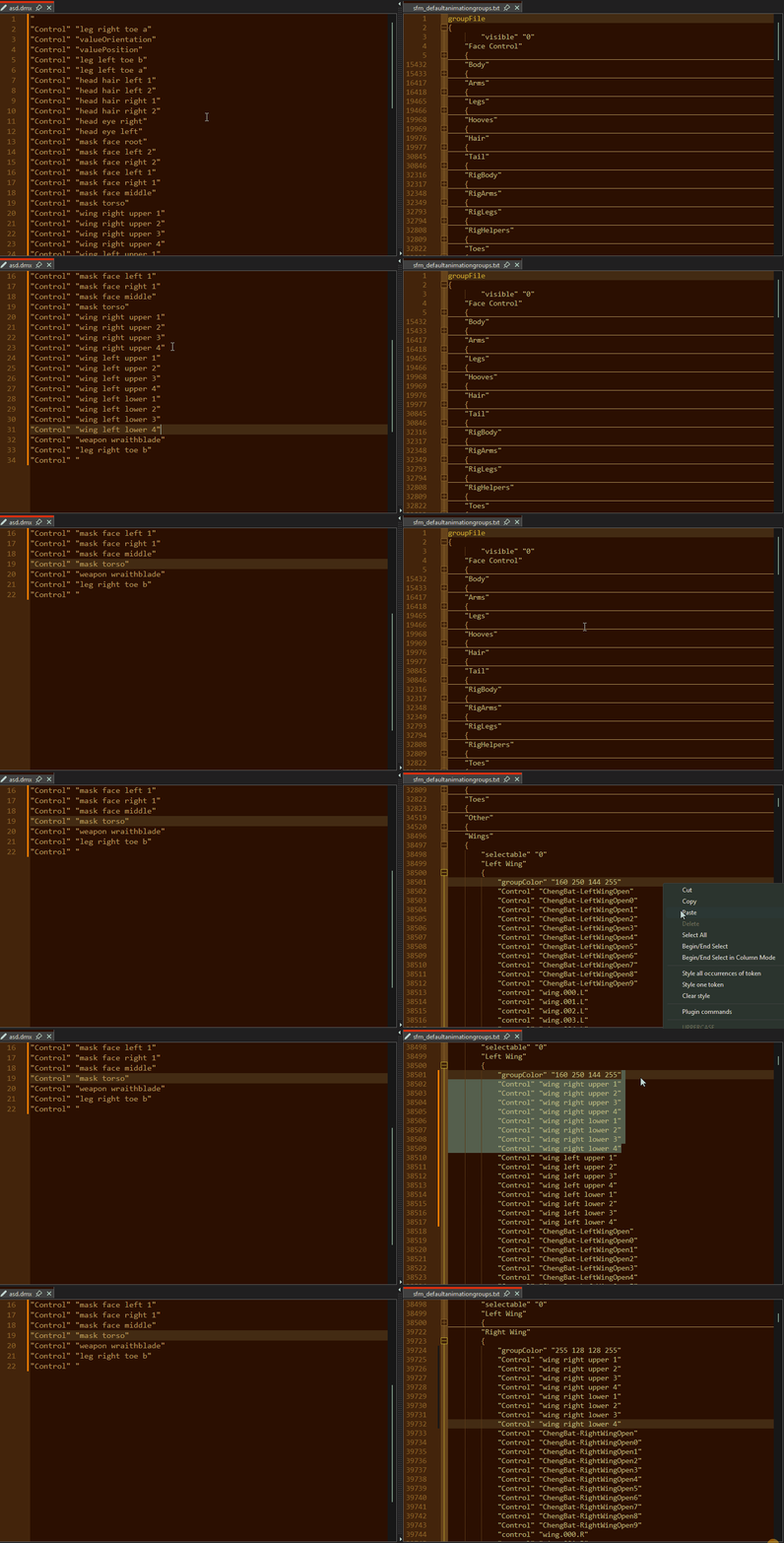 When you've added your controls, save the file. Go back to SFM, and right click your model, go to "Utilities", and select "Rebuild Control Groups". SFM will reevaluate the control names against what's currently in your SFM_DefaultAnimationGroups.txt file.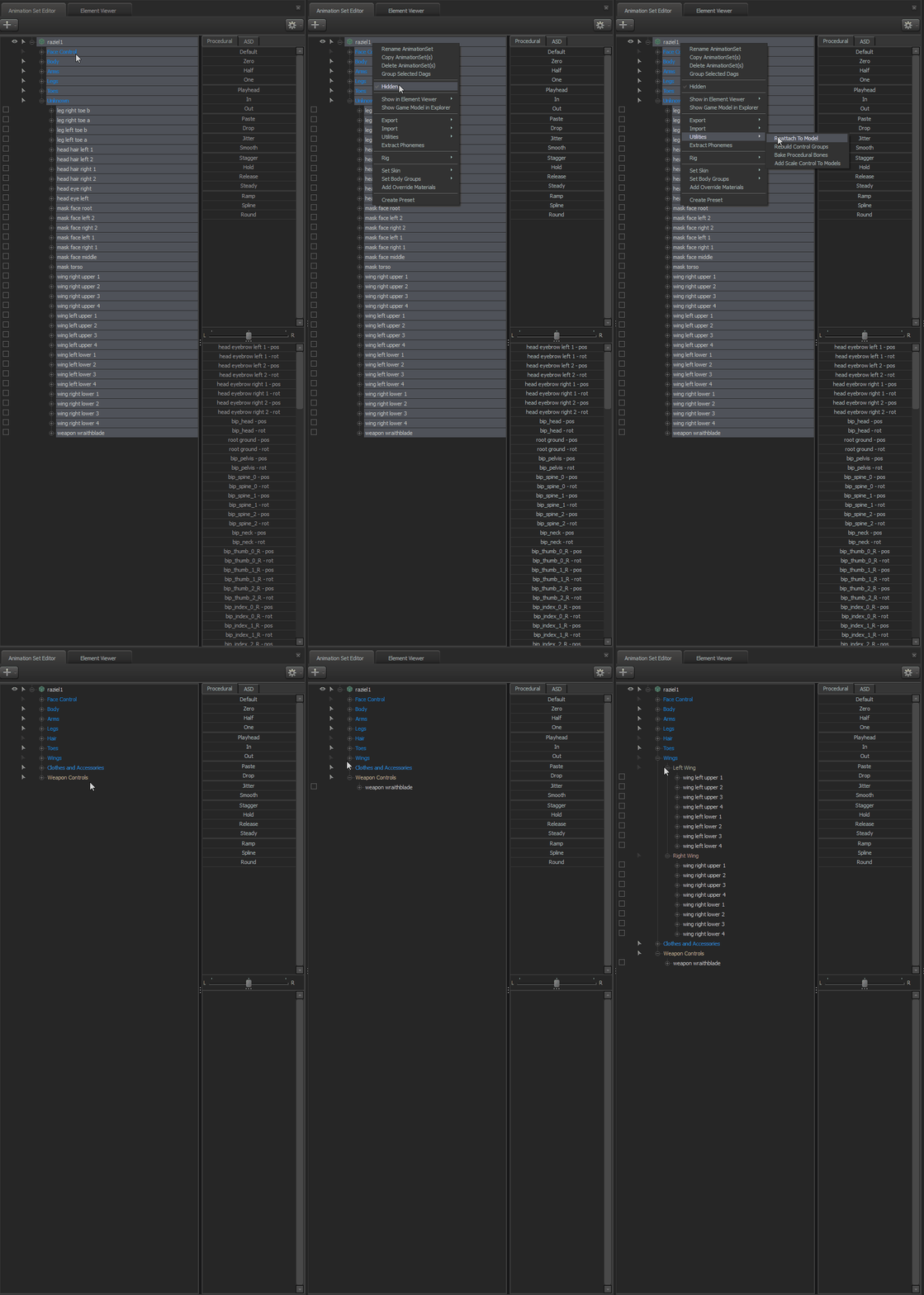
And that's it! Organise all the controls as you see fit, and then repeat the steps for the next model you want to process.
Someone who knows what they're doing with Python could probably whip up a script to do the exporting and cleaning steps automatically. But until that script exists, this will have to do.
Conclusion and Misc Notes
There's a fair few models out there that ship with their own SFM_DefaultAnimationGroups.txt file already tweaked to include their own models controls, so back up your own file if you do customise it.
Even if you don't edit your current file, back it up anyway. Installing a model pack that changes where controls are can throw your workflow off pretty horribly.
In case you're worried about SFM slowing down because of having too many controls, don't be. My file is currently 71,832 lines long, and uses 2,155 KB of space. The default one that ships with SFM is 958 lines long, and is just 25 KB large. And my SFM is as stable as normal.
You can't make a preset on a model that has a Rig applied. So for now if you wanted to organise Rigged bones, you'll need to do that manually.
A fun fact about SFM I've learned while doing this is about special characters and how SFM supports them. For example, if you name a control using Japanese characters, SFM will display nonsense like what's below, instead. The controls do still have the correct names though, and exporting control names using this method preserves that name. The below controls for example are "まばたき" (Blink) and "あ" (A). Organising these controls does still work, though their text will still be garbled.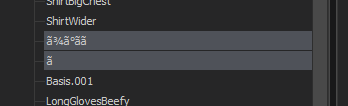 If you manage to break the SFM_DefaultAnimationGroups.txt file somehow, you've usually either missed a matching quotation mark, or a bracket. It will print an error message to the console telling you what Group the error came from, so refer to that and check your file. Syntax Highlighting will help, as mentioned in the previous section!
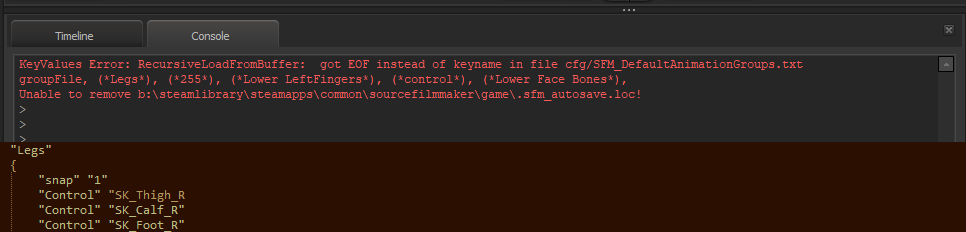
If you're not sure which error to refer to, then hit the Clear button on the Console, and use Utilities > Rebuild Control Groups on your model. The last message present will contain the group with the error. In the below example I removed a quote mark from a leg bone.
Video Overview
- Changing Textures Using Material Overrides★ 5 (1.4k)41k views2.7k ♥5 minUpdated Jul 26, 2014
- Manually Updating TF2 Content★ 5 (1.3k)35k views1.9k ♥2 minUpdated Nov 26, 2025
- The Fundamentals of SFM: For Beginners★ 5 (1.3k)25k views3.3k ♥55 minUpdated Apr 29
- Ваш первый постер★ 5 (1.1k)22k views2k ♥5 minRussianUpdated Oct 22, 2024
- Getting Gmod Workshop stuff too SFM★ 5 (510)15k views1.3k ♥1 minBulgarianUpdated Aug 4, 2015
- Animation Guide★ 5 (704)14k views1.9k ♥6 minUpdated Apr 9, 2023





- Upgrading to PremiumTeam Fortress 2★ 5 (20k)1441k views11k ♥6 minUpdated May 11, 2022
- No More Room in Hell Official ManualNo More Room in Hell★ 5 (2.8k)569k views2.1k ♥29 minUpdated Apr 22, 2019
- NMRiH Community Hosting GuidesNo More Room in Hell★ 5 (526)351k views653 ♥1 minUpdated Aug 10, 2022
- ULTIMATE GUIDE FOR GAME DEV TYCOONGame Dev Tycoon★ 5 (5.8k)326k views10k ♥4 minUpdated 23 Jan, 2014
- How to 'Git Gud' Soon™MORDHAU★ 5 (2k)318k views3k ♥68 minUpdated Nov 16, 2024
- Лучшие кооперативные игры SteamPAYDAY 2★ 5 (1.5k)315k views2.1k ♥56 minRussianUpdated Apr 27, 2025






This guide was created by its original author on the Steam Community. Are you the author and want it removed? Request removal.