Organising Your Rig Scripts
There's so many rigs it spills into multiple pages WARGH

Introduction
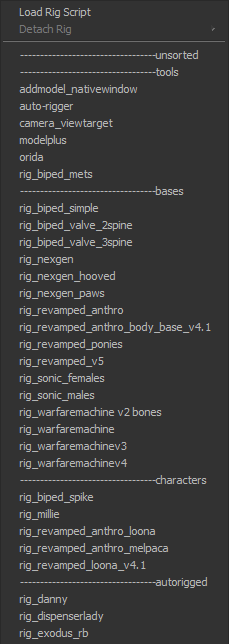 If you're anything like me, you end up with a lot of rigs. Too many rigs. Some which you might only ever use once, or want to keep just in case. And even though it's sorted alphabetically, that A-Z ordering restarts when SFM looks in a different mod folder.
We can fix that, with the amazing power of... Folders!
Since SFM looks in subfolders when populating that list of rigs, we can just do a little organization.
Before you start...
There are a couple of things to consider before following these steps.
Some rigs have logic that depends on other files being somewhere it expects. I don't use SFM_Init myself, but I imagine that might need manual intervention to correct paths to files. Orida reads and writes JSON files to the Usermod scripts folder, and needs editing to open the correct folder by default.
You can leave scripts that cause these complications in their original spaces if you prefer. If you're advanced, these are just Python scripts which you can edit in Notepad++.
The Workshop handler will not know about any changes you make, so you may end up with duplicate or orphaned files. Unsubscribing will not delete a file you've moved, for example.
How To Do The Thing
By default, your important folders are Usermod and Workshop. If you've added custom mod folders you'll need to handle their scripts folders too. If you don't know if you've got custom mod folders, the answer's almost certainly "no".
For simplicity's sake, I would use the Usermod folder as the place where scripts live. This will leave updated files from the workshop to sit there waiting for you to manage them.
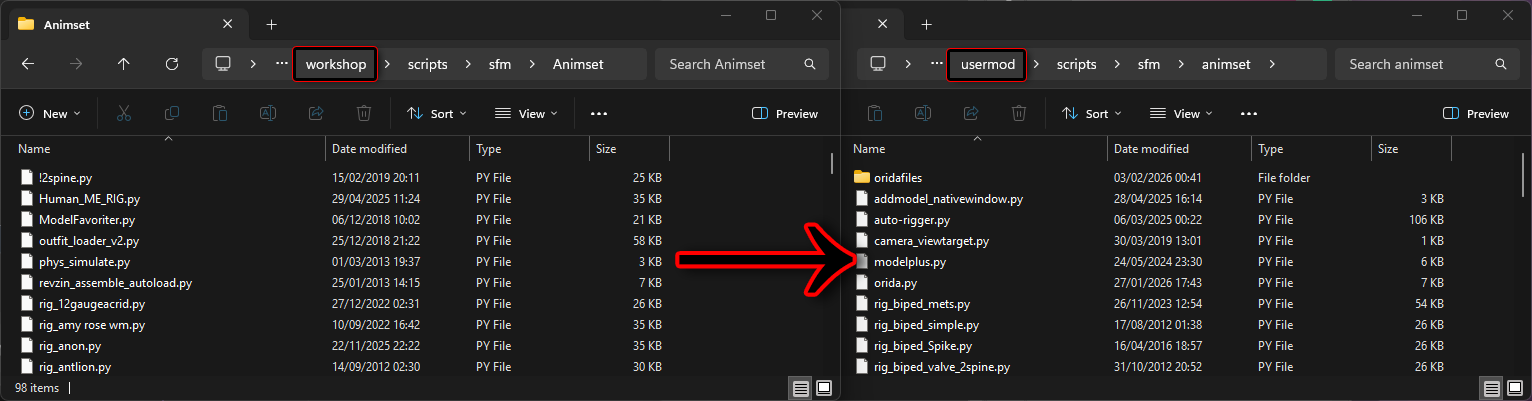
In Workshop/Scripts/SFM/Animset are the files that are shown in the Rigs menu. What we want to do is move them into Usermod/Scripts/SFM/Animset so that all the rigs are together in one place.
By default, SFM ships with one script in Platform/Scripts/SFM/Animset, so make sure to move that one as well.
Make subfolders within Animset for your categories. I personally go with "1_Tools", "2_Bases", "3_Characters", "4_AutoRigged". Tools being for... you know, tools. Bases being for rigs that apply to several models sharing the same standards. Characters for individual characters, and AutoRigged for rigs put out by the Autorigger script on the Workshop.
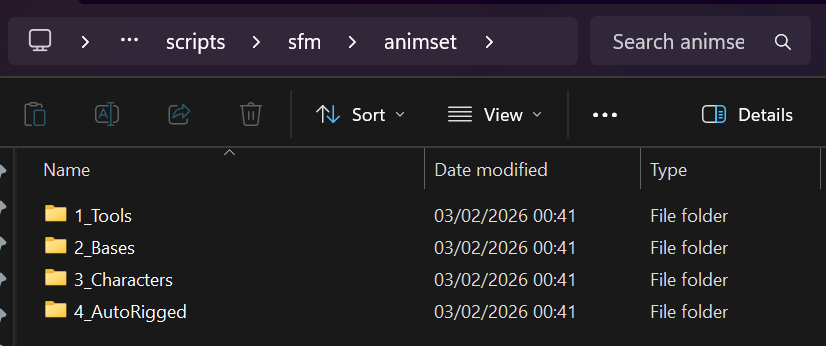
While the folder names themselves don't show up in the rigs list, the folders are sorted alphanumerically, so the contents of 1_Tools will show in the list before 2_Bases, and so on.
Time for the boring part. Read the names of the rigs, and sort them into their subfolders.
You can also make a Trash folder and move it up a level into the SFM folder if you want to move files out of the menu, but still be able to find them with the Load Rig File... menu entry.
Headers! They're maybe the most important part for making the list manageable.
Just make an empty text file and name with a line of dashes, along with the name you want the header to show up as in SFM, and change the file extension to ".py". So for my Bases folder header, I just make a file called "----------------------------------Bases.py". The dashes are there for two reasons:
- to act as an actual divider for visual clarity, and
- because the contents of the folders show up alphanumerically in Windows and SFM, symbols such as dashes are sorted to appear before letters and numbers.
Remember that Windows hides file extensions by default. If you make the file and it doesn't show up, the file is probably still a ".txt" file, like "Bases.py.txt". You can also put one called "----------------------------------Unsorted.py" in the Animset folder to help distinguish those from sorted files.
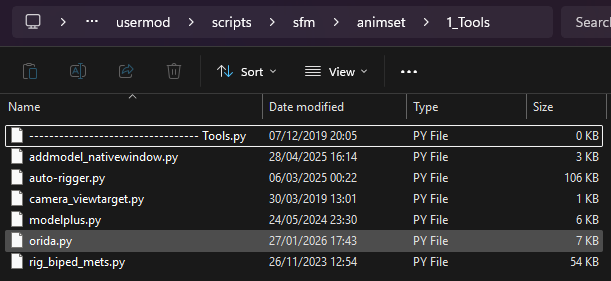 Don't worry about accidentally clicking your headers within SFM. As long as it's empty, it'll just carry on without doing anything.
Conclusion
Thanks to ImAFutureGuitarHero for checking over the guide and helping out!
- Changing Textures Using Material Overrides★ 5 (1.4k)41k views2.7k ♥5 minUpdated Jul 26, 2014
- Manually Updating TF2 Content★ 5 (1.3k)35k views1.9k ♥2 minUpdated Nov 26, 2025
- The Fundamentals of SFM: For Beginners★ 5 (1.3k)25k views3.3k ♥55 minUpdated Apr 29
- Ваш первый постер★ 5 (1.1k)22k views2k ♥5 minRussianUpdated Oct 22, 2024
- Getting Gmod Workshop stuff too SFM★ 5 (510)15k views1.3k ♥1 minBulgarianUpdated Aug 4, 2015
- Animation Guide★ 5 (704)14k views1.9k ♥6 minUpdated Apr 9, 2023





- Upgrading to PremiumTeam Fortress 2★ 5 (20k)1441k views11k ♥6 minUpdated May 11, 2022
- No More Room in Hell Official ManualNo More Room in Hell★ 5 (2.8k)569k views2.1k ♥29 minUpdated Apr 22, 2019
- NMRiH Community Hosting GuidesNo More Room in Hell★ 5 (526)351k views653 ♥1 minUpdated Aug 10, 2022
- ULTIMATE GUIDE FOR GAME DEV TYCOONGame Dev Tycoon★ 5 (5.8k)326k views10k ♥4 minUpdated 23 Jan, 2014
- How to 'Git Gud' Soon™MORDHAU★ 5 (2k)318k views3k ♥68 minUpdated Nov 16, 2024
- Лучшие кооперативные игры SteamPAYDAY 2★ 5 (1.5k)315k views2.1k ♥56 minRussianUpdated Apr 27, 2025






This guide was created by its original author on the Steam Community. Are you the author and want it removed? Request removal.