How to change SFM's loading background picture
Getting started
We are going to change the SFM loading background picture. To do that, we need
1024x1024 size of image to show up properly in the loading scene and an image editing
software like Adobe Photoshop, Krita, GIMP, or whatever you have that can tweak the image's size
Please consider having these downloaded already
- An image editing software for cropping images
- VTFEditor for opening some files
- SFM with usermod installed
This is the image we are going to change.

Step 1 : Prepare your image
then rescale it to 1024x1024 using your favorite image editing software.
We need square texture sizes to make the image look properly in the loading scene.
Step 2 : Locate the file we need
Now that we have our 1024x1024-sized image, we need to replace it with the default loading image.
Win + E to open your file browser, unless you're not using Windows OS.
Go to the folder where you downloaded SFM. I bet you already know where it is.
if you suffered with textures enough.
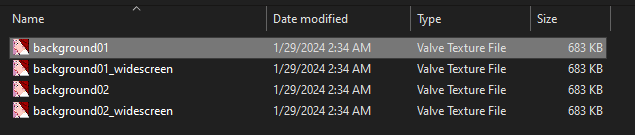
Inside the folder, you will find these
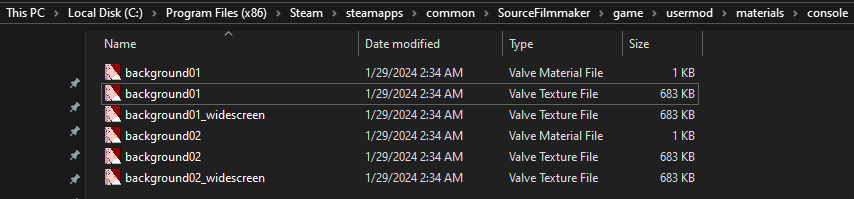
Select "background01" highlighted in the folder and open it.
You may need to have vtfeditor downloaded in your PC to open these (.vtf, .vmt) files.
Step 3 : Importing your image
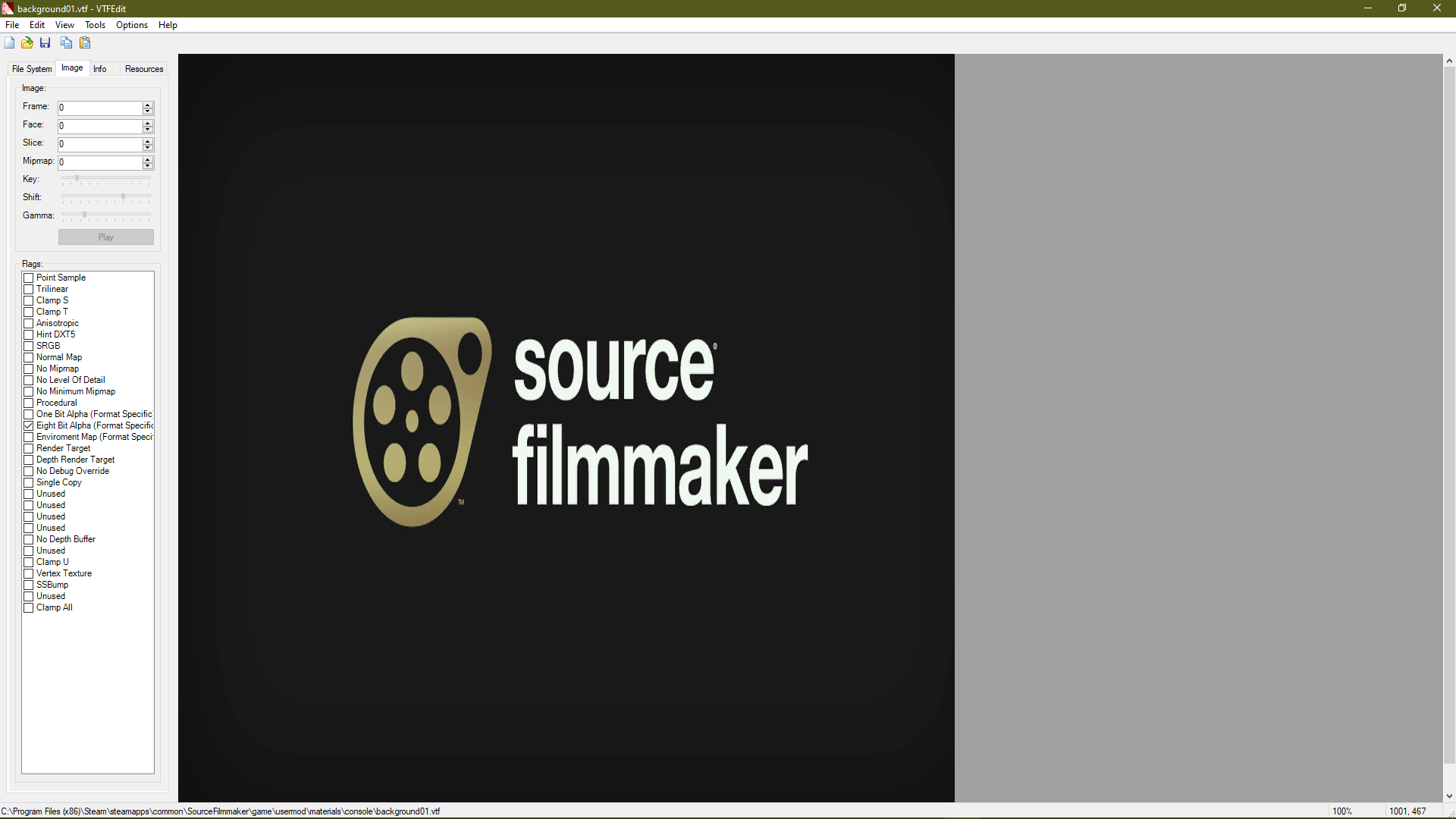
Now you are seeing the interface of vtfeditor and the default image familiar from the loading scene.
We can change this image by importing the new one, which is the one we wanted to
Press CTRL + I or click the import button highlighted.
on the top left corner of the interface.
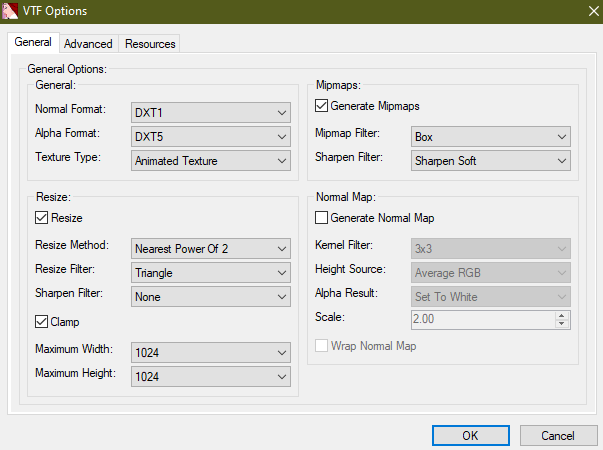
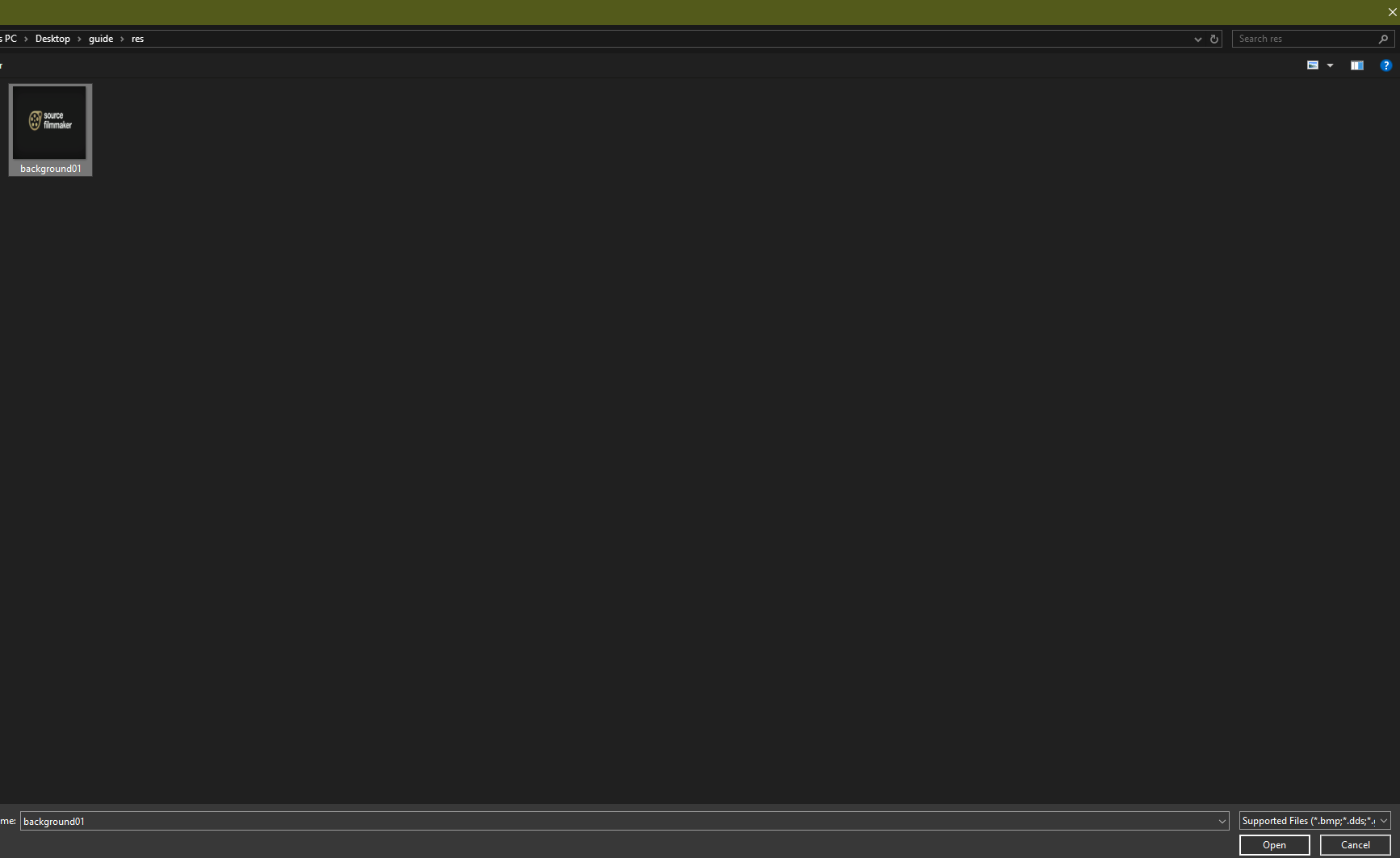
Step 4 : Locate and select your image
Locate your image to import it.
Here, I am just selecting the same default image.
Step 5 : Saving your new loading image
After you select your image, you will see it on the same interface, not in mine though :D
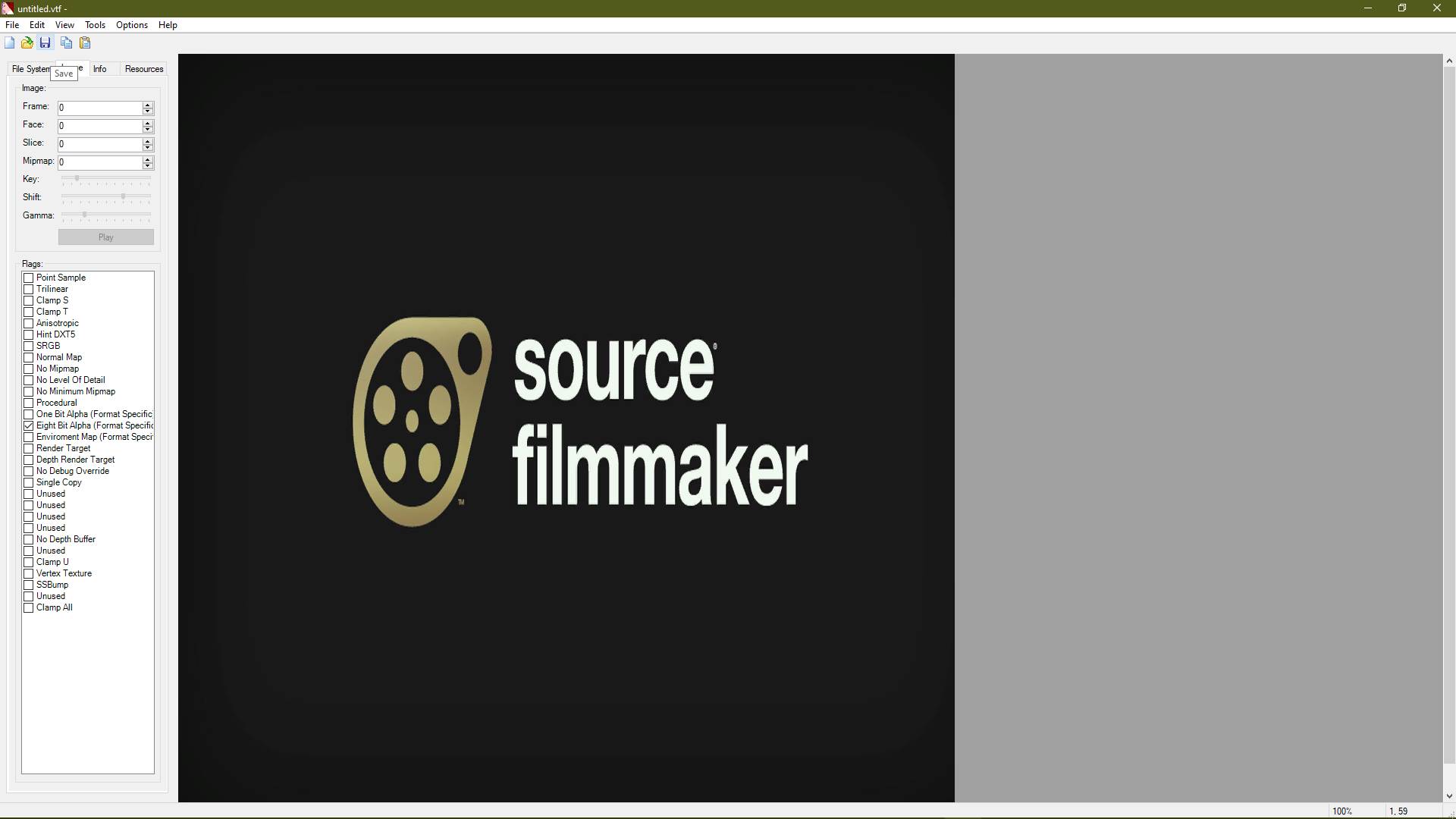
Press CTRL + S to save, or click the save button.
locate the default loading image file, we are going to replace it with our own
 Click Yes and replace the file.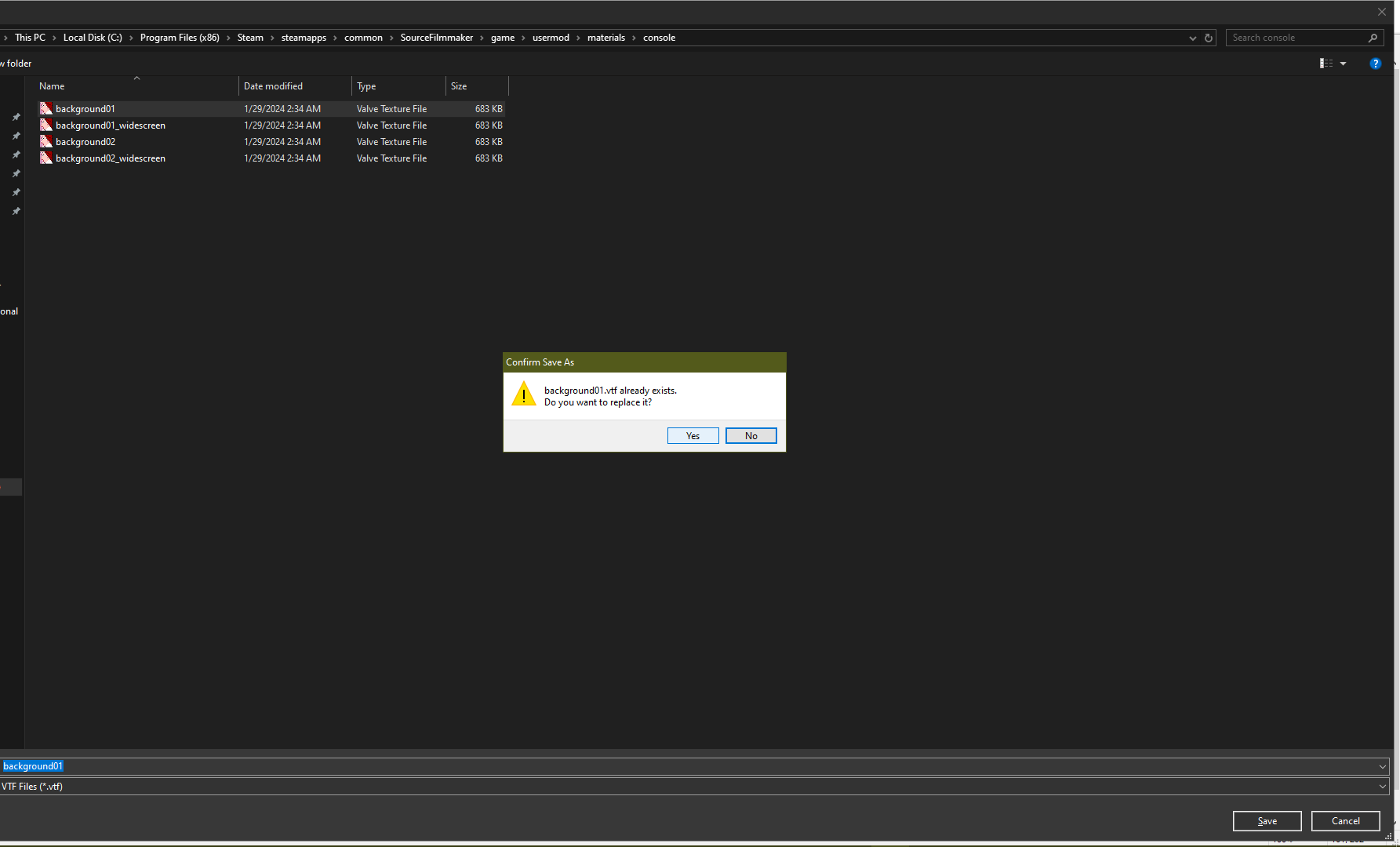
Step 6 : Repeat it
Now we are done but sometimes SFM may show the other default files like background02 or your screen resolution may trigger sfm to use widescreen versions of same files such as
Do the same operations to each file located in here
Done
After replacing all the background images, you may launch SFM to see your image in the loading scene!
Solution: Make sure the image file is named the same as the default ones and is located in the correct directory.
Rate, Reward & Add to favorite!
- Changing Textures Using Material Overrides★ 5 (1.4k)41k views2.7k ♥5 minUpdated Jul 26, 2014
- Manually Updating TF2 Content★ 5 (1.3k)35k views1.9k ♥2 minUpdated Nov 26, 2025
- The Fundamentals of SFM: For Beginners★ 5 (1.3k)25k views3.3k ♥55 minUpdated Apr 29
- Ваш первый постер★ 5 (1.1k)22k views2k ♥5 minRussianUpdated Oct 22, 2024
- Getting Gmod Workshop stuff too SFM★ 5 (510)15k views1.3k ♥1 minBulgarianUpdated Aug 4, 2015
- Animation Guide★ 5 (704)14k views1.9k ♥6 minUpdated Apr 9, 2023




- Upgrading to PremiumTeam Fortress 2★ 5 (20k)1441k views11k ♥6 minUpdated May 11, 2022
- No More Room in Hell Official ManualNo More Room in Hell★ 5 (2.8k)569k views2.1k ♥29 minUpdated Apr 22, 2019
- NMRiH Community Hosting GuidesNo More Room in Hell★ 5 (526)351k views653 ♥1 minUpdated Aug 10, 2022
- ULTIMATE GUIDE FOR GAME DEV TYCOONGame Dev Tycoon★ 5 (5.8k)326k views10k ♥4 minUpdated 23 Jan, 2014
- How to 'Git Gud' Soon™MORDHAU★ 5 (2k)318k views3k ♥68 minUpdated Nov 16, 2024
- Лучшие кооперативные игры SteamPAYDAY 2★ 5 (1.5k)315k views2.1k ♥56 minRussianUpdated Apr 27, 2025






This guide was created by its original author on the Steam Community. Are you the author and want it removed? Request removal.